Digitra - V1 to V2 Migration Guide
Welcome to the V2 of our API! This guide is designed to help you migrate your integration smoothly from V1 to V2. We've structured this guide to walk you through the necessary setup, security configurations, and operational changes.
Setup
This section covers the initial steps to get your V2 account up and running, from setting your password to understanding your account details and managing subaccounts.
Change Password
Upon receiving your new credentials for V2, it is crucial to change your password immediately to secure your account.
Do you want to change your password? You're in the right place. You'll need your current password, and a new one in hand.
HTTP PATCH Request
https://api.sandbox.avenia.io:10952/v2/auth/change-password
Fields
| Field | Type | Description |
|---|---|---|
currentPassword | string | Your current password. |
newPassword | string | The new password you want to set. |
newPasswordConfirm | string | The same new password to confirm it's correct. |
Sample JSON Body
{
  "currentPassword": "ThoughtMyPasswordWasStrong",
  "newPassword": "ThisTimeMyPasswordIsStrong",
  "newPasswordConfirm": "ThisTimeMyPasswordIsStrong"
}
Account Info & Account Balance
Account Information displays all data associated with your account, including your Wallets (Avenia API Wallets), which are automatically created when you set up your Business Account. Detailed information on these wallet capabilities will be provided later.
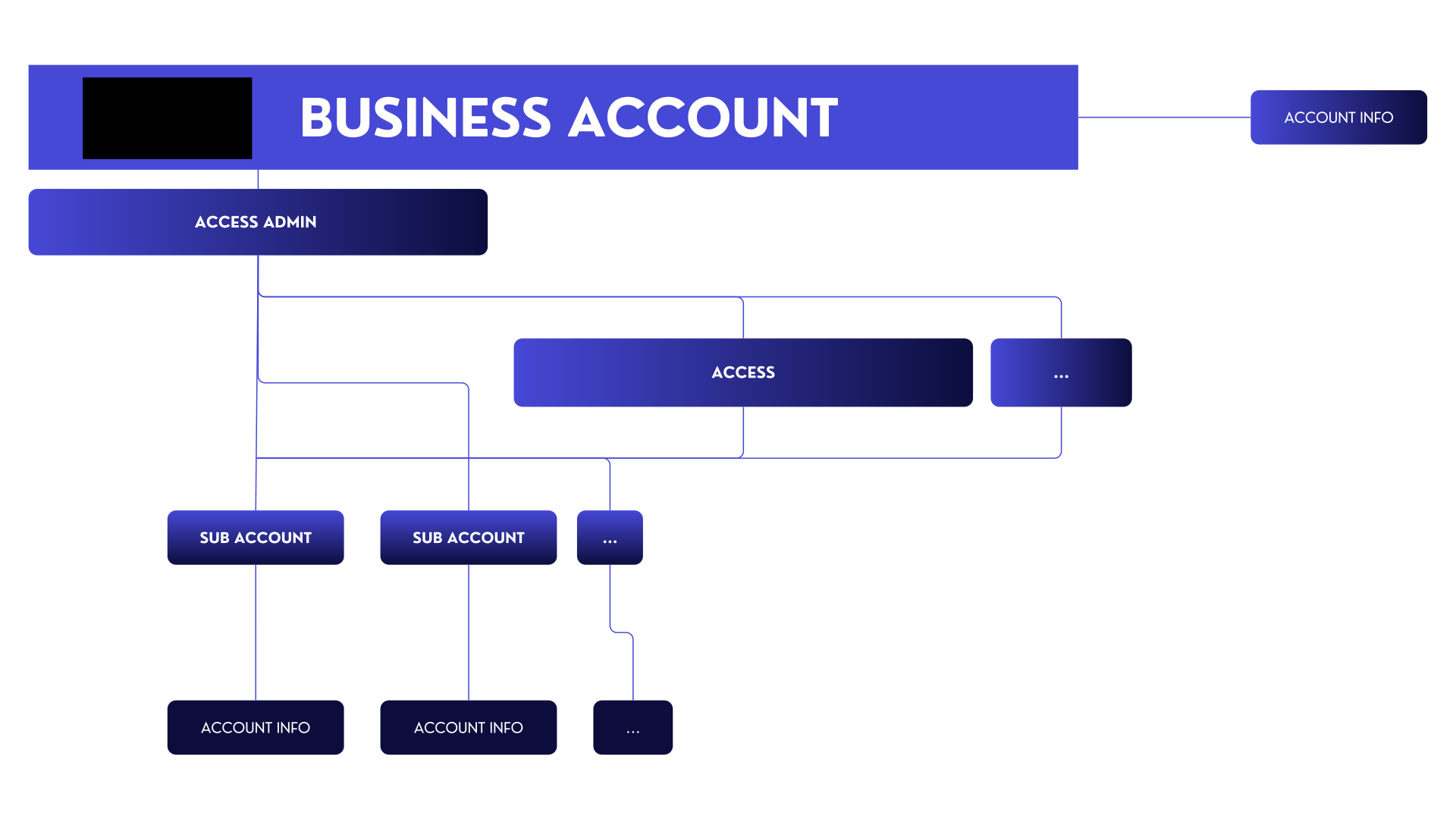
You can retrieve your account information and balances using the following endpoints.
Account Info - HTTP GET Request:
https://api.sandbox.avenia.io:10952/v2/account/account-info
Parameters
| Field | Type | Description |
|---|---|---|
subAccountId | string | The ID of your sub-account. Instead of fetching data from your main account, it retrieves data from this sub-account. |
Sample JSON Response:
{
  "id": "00000000-0000-0000-0000-000000000000",
  "accountInfo": {
    "id": "11111111-1111-1111-1111-111111111111",
    "accountType": "INDIVIDUAL",
    "name": "xxxxx",
    "countrySubdivisionTaxResidence": "BR-SP",
    "countryTaxResidence": "BRA",
    "identityStatus": "CONFIRMED",
    "fullName": "xxxxx",
    "birthdate": "9999-99-30T00:00:00Z",
    "taxId": "99999999999"
  },
  "wallets": [
    {
      "id": "be85cef0-d70a-47cc-9847-9014570efed5",
      "walletAddress": "0xXXXXXXXXXXXXXXXXXXXXXXXXXXXXXXXXXXXXXXXX",
      "chain": "EVM"
    }
  ],
  "pixKey": "11111111-1111-1111-1111-111111111111",
  "brCode": "00020126740014br.gov.bcb.pix01365c2c61a1-134b-4c34-958f-ea3122ac717f0212Avenia Deposit5204000053039865802BR5917Avenia API Ltda6009Sao Paulo621005060000016304DBD5",
  "createdAt": "2025-02-18T17:00:39.854943Z"
}
The ID is the id of your account itself
Account Balance - HTTP GET Request
https://api.sandbox.avenia.io:10952/v2/account/balances
Example JSON Response
{
  "balances": {
    "BRLA": "9457.170326",
    "USDC": "0",
    "USDT": "42.07732"
  }
}
Account Statement
All balance changes in your account will be shown in the account statement. This allows you to track every transaction that occurs.
Logs Fields
| Field | Type | Description |
|---|---|---|
balanceChange | Number | The amount transacted in the account. |
finalBalance | Number | The account balance after the transaction is applied. |
description | String | A human-readable explanation describing the reason for the balance change. |
HTTP GET Request
https://api.sandbox.avenia.io:10952/v2/account/statement
Example JSON response
{
  "logs": [
    {
      "id": "04d3b592-40cc-44ed-9370-65852842bdd6",
      "token": "BRLA",
      "balanceChange": "100",
      "finalBalance": "9357.170326",
      "description": "[DEBIT] Process ticket output: BRLA delivery",
      "createdAt": "2025-04-01T23:06:34.440381Z"
    },
    {
      "id": "1412d736-d35f-4c98-9d73-3449f4845fea",
      "token": "BRLA",
      "balanceChange": "800",
      "finalBalance": "9257.170326",
      "description": "[DEBIT] Process ticket output: BRLA delivery",
      "createdAt": "2025-04-01T23:01:34.335504Z"
    }
  ],
  "cursor": "MjgzLTE3NDM1MTU4MjA4MDY="
}
Remember that you can pass subAccountId as a parameter for the operation to be for the sub account.
Subaccount Management
A Subaccount is a way to manage your clients by separating your main account (Avenia API Main Account or BA) from others. In endpoints that permit subaccount operations, you can simply pass the subAccountId parameter with the UUID of the subaccount. By doing this, you will be operating on behalf of that subaccount.
The diagram shows that multiple accesses can manage subaccounts related to the main account.
Create Subaccount - HTTP POST Request
https://api.sandbox.avenia.io:10952/v2/account/sub-accounts
Fields
| Field | Type | Description |
|---|---|---|
accountType | string | Type related to this subaccount (INDIVIDUAL) |
name | string | Name to facilitate identification of this sub-account up to 64 characters |
Sample JSON Body
{
  "accountType": "INDIVIDUAL",
  "name": "jane doe"
}
Example JSON response
{
  "id": "c852df87-ac61-4259-8242-6451658dfedb"
}
More endpoints related to a sub-account Read more
Account limits
This guide explains how to retrieve the operational limits for your account or subaccount. Limits are defined monthly and are crucial for understanding your account's transaction capacity.
To view the limits of a subaccount, simply include the subAccountId as a parameter in the request.
HTTP GET Request:
https://api.sandbox.avenia.io:10952/v2/account/limits
Sample JSON Response:
{
  "limitInfo": {
    "blocked": false,
    "createdAt": "2025-07-22T03:24:29.032379Z",
    "limits": [
      {
        "currency": "*",
        "maxFiatIn": "100000",
        "maxFiatOut": "100000",
        "maxChainIn": "100000",
        "maxChainOut": "100000",
        "usedLimit": {
          "year": 2025,
          "month": 7,
          "usedFiatIn": "0",
          "usedFiatOut": "0",
          "usedChainIn": "0",
          "usedChainOut": "0"
        }
      },
      {
        "currency": "BRL",
        "maxFiatIn": "600000",
        "maxFiatOut": "600000",
        "maxChainIn": "600000",
        "maxChainOut": "600000",
        "usedLimit": { "..." }
      },
      {
        "currency": "USD",
        "maxFiatIn": "100000",
        "maxFiatOut": "100000",
        "maxChainIn": "100000",
        "maxChainOut": "100000",
        "usedLimit": { "..." }
      }
    ]
  }
}
Response Fields Explained
The response contains a limitInfo object with the following fields:
| Field | Type | Description |
|---|---|---|
blocked | boolean | If true, all operations for this account are blocked due to limit restrictions. |
createdAt | string | The timestamp when the limit information was generated. |
limits | array of objects | An array containing limit details for different currencies. |
Each object inside the limits array has the following structure:
| Field | Type | Description |
|---|---|---|
currency | string | The currency of the limit. A value of * represents the global limit, which is consumed by any operation in any currency, expressed in USD. Other values (e.g., BRL, USD) represent specific limits for operations conducted in that currency. |
maxFiatIn | string | The maximum monthly limit for fiat deposits. |
maxFiatOut | string | The maximum monthly limit for fiat withdrawals. |
maxChainIn | string | The maximum monthly limit for on-chain deposits. |
maxChainOut | string | The maximum monthly limit for on-chain withdrawals. |
usedLimit | object | An object detailing the consumed limit for the current month (year, month), broken down by operation type (usedFiatIn, usedFiatOut, etc.). The values are expressed in the specified currency. |
Currency-specific limits are expressed in their own value. For example, a maxFiatIn of 100000000 for the ARS currency means a limit of 100 million Argentine Pesos.
Static BR Code
Introduction
The Static BR Code endpoint allows you to generate static QR Codes for receiving Pix payments. These QR Codes can be created with or without a fixed amount and can be associated with your main account or any of your sub-accounts.
This guide will walk you through how to use this endpoint to generate and manage your static BR Codes.
Generate Static BR Code
This endpoint generates a static BR Code. If a BR Code with the same parameters already exists for the account or sub-account, it will be returned. Otherwise, a new one will be created.
Parameters
The parameters should be sent as a query string in the GET request.
| Field | Type | Description |
|---|---|---|
subAccountId | string | Optional. The ID of the sub-account from which the BR Code will be generated. If not provided, it will be generated from the main account. |
amount | string | Optional. The fixed amount for the BR Code. If zero, the payer is free to set the amount. |
referenceLabel | string | A unique identifier for the BR Code, like an external ID. It must be alphanumeric and have a maximum length of 19 characters. This field is required. |
additionalData | string | Optional. Additional information that will be displayed to the payer when they scan the QR Code. It has a maximum length of 35 characters. |
HTTP GET Request
https://api.sandbox.avenia.io:10952/v2/account/bank-accounts/brl/static-br-code
JSON Response
{
  "brCode": "00020126580014br.gov.bcb.pix013600000000-0000-0000-0000-000000000000520400005303986540510.005802BR5913Your Name6009SAO PAULO62290525yourUniqueReference6304XXXX"
}
Security
Security is a top priority. This section provides links to our detailed guides on how to secure your account using Multi-Factor Authentication (MFA) and API Keys.
KYC (Know Your Customer) Guide
KYC is a process to verify user identity, ensuring compliance with regulations and preventing fraud or illegal activities. It involves validating personal information and documents.
Remember that to perform KYC for a Subaccount, simply pass the subAccountId field as a request parameter.
KYC Level 1 - API
This guide outlines the multi-step process for completing KYC Level 1 by uploading identity documents and a selfie. This flow is ideal for handling user documents securely.
The process consists of three main steps:
- Requesting secure URLs to upload the documents.
- Uploading the document files.
- Submitting the KYC request with the uploaded document information.
MFA Guide
To can create your API keys, you need to enable Multi-Factor Authentication using TOTP (Time-Based One-Time Password). This adds an extra layer of security by requiring a time-sensitive code generated by your authentication app.
API Key Management
How to manage your API keys - create, delete, list, and update them. API Keys provide a simple and efficient approach to API authentication, allowing direct control over access without the need for complex renewal flows.
API Key Guide
How to use the API key and how to authenticate using it. Learn the practical implementation of API key authentication with cryptographic signatures.
Webhooks
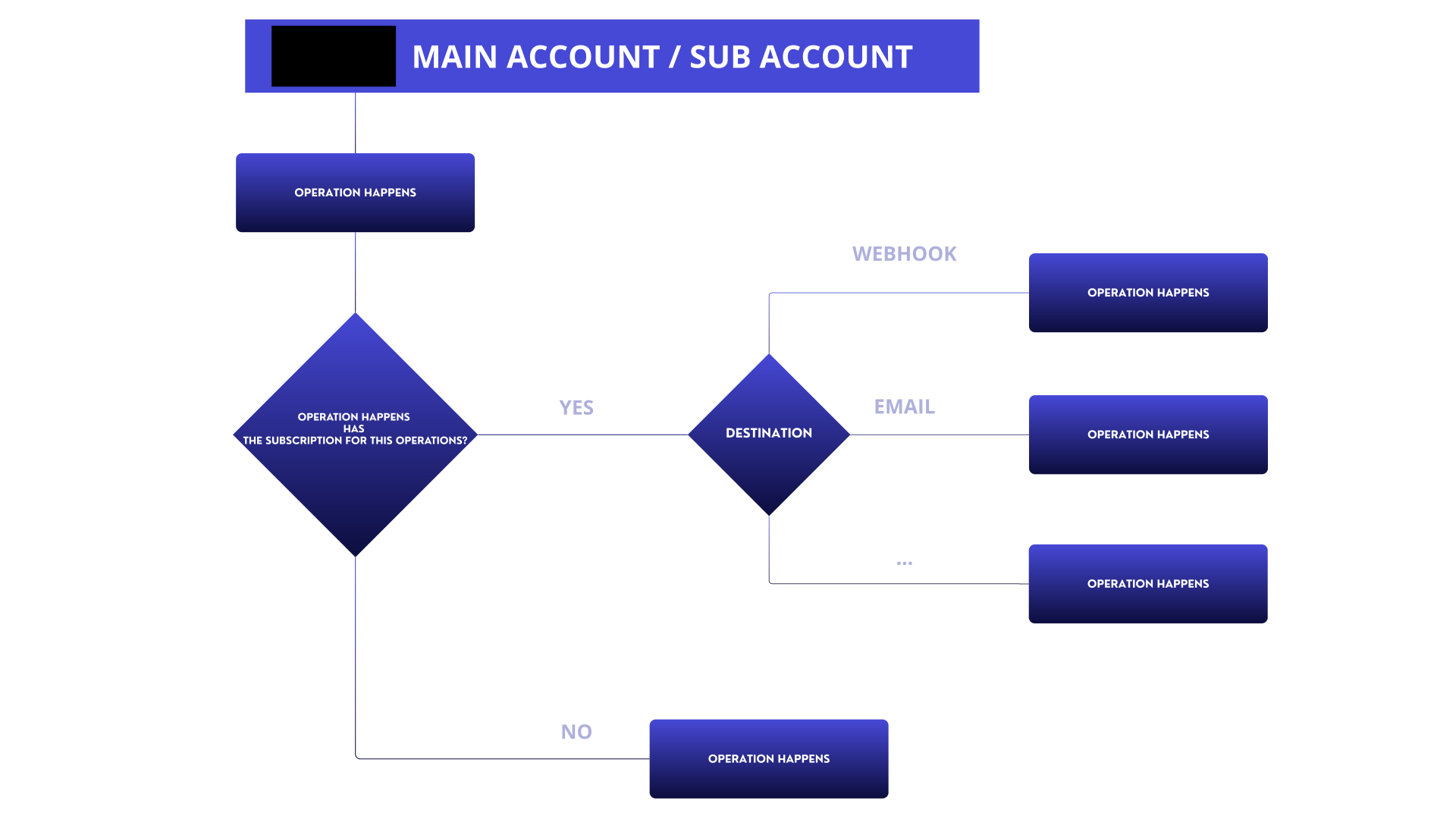
Receive real-time notifications for events in your account. The following guides will help you set up and manage webhooks.
Webhook Management
Learn how to create, edit, and delete webhooks. Webhooks allow you to receive real-time notifications as soon as an operation is executed, eliminating the need for constant polling.
Verifying Webhook Authenticity
How to make sure that webhooks are coming from Avenia. Learn to verify the digital signature included in each webhook request using our public key to confirm authenticity and data integrity.
Webhooks Events
How the events work and what data they contain. Understand the different event types like TICKET events and their various statuses throughout the transaction lifecycle.
Operations
This section will contain the detailed step-by-step flows for replicating your V1 operations in V2.
Once the quote is reviewed and accepted, a ticket is generated. The ticket represents the final commitment to execute the transaction under the quoted terms. It effectively "closes" the quote and initiates the actual operation—locking the rates, reserving liquidity if needed, and launching the underlying process that moves or converts the funds.
Quote
A quote is a calculation that determines how much someone will receive in exchange for a certain amount of money or assets. It provides a fixed or estimated price for a transaction before it happens, allowing users to know the exact cost, fees, and potential variations in value.
About Quote
A quote expiration is 15 seconds! All inputs are URL Parameters as this is a GET endpoint. Either inputAmount or outputAmount must be provided, but not both at the same time.
Input
For input, we can handle both fiat and blockchain transactions.
Fiat currencies can have a maximum of 2 decimal places, while blockchain currencies can have up to 6 decimal places.
- inputCurrency: The currency the user is paying with (e.g.,
BRL,USD,USDC) - inputPaymentMethod: The payment method used for the transaction (e.g.,
PIX,BLOCKCHAIN) - inputAmount: The amount the user wants to pay/deposit
Output
For output, we also handle both fiat and blockchain transactions.
Just like for input, fiat currencies can have a maximum of 2 decimal places, while blockchain currencies can have up to 6 decimal places.
- outputCurrency: The currency the user wants to receive (e.g.,
BRL,USD,USDT) - outputPaymentMethod: The method in which the user wants to receive the funds (e.g.,
PIX,BLOCKCHAIN) - outputAmount: The amount the user wants to receive
Markup
Markup allows you to add an extra fee on top of Avenia's standard pricing, giving you control over how much you charge your users for transactions.
- markupFloatingFee: A percentage fee added on top of the transaction (e.g.,
0.01for 1%) - markupInputFixedFee: A fixed fee applied to the input amount (e.g.,
10.00in all input operation) - markupOutputFixedFee: A fixed fee applied to the output amount (e.g.,
5.00in all output operation) - markupCurrency: The currency in which the markup fee will be charged (e.g.,
BRLA,USDC,USDT)
The markup must be sent to your Avenia Wallet, which belongs to your Business Account (BA) or sub account if applicable.
Send Method
Send Method is only applied to quotes where the input is blockchain. If your input is a blockchain transaction, you must specify the send method to Digitra how the "deposit" will be made.
Permit
You will sign a transaction allowing Avenia to instantly pull the tokens from your wallet, ensuring a seamless and automatic transfer. Since the transaction is executed immediately, the final amount will not change.
Transfer
You will need to proactively send the tokens to your Avenia Wallet. This means Avenia will lock in the value for a certain period of time, which may result in additional costs due to price fluctuations.
Third Party
Here, you will specify whether the input or output of this transaction belongs to the account holder or a third party.
- inputThirdParty: Specify whether the deposit is being made by the account holder or by a third party
- outputThirdParty: Specify whether the withdrawal will be sent to the account holder or to a third party
Table with allowed data
Permitted Currencies and Payment Methods
| Currency | Valid Payment Methods |
|---|---|
| BRL | PIX |
| BRLA | INTERNAL, POLYGON, MOONBEAM, CELO, GNOSIS |
| USDC | INTERNAL, POLYGON, MOONBEAM, CELO |
| USDCe | POLYGON |
| USDT | INTERNAL, POLYGON, MOONBEAM, CELO |
Blockchain Currencies
| Currency | Description |
|---|---|
| BRLA | BRLA token on supported blockchains |
| USDC | USD Coin (USDC) |
| USDCe | USD Coin (USDC.e) on certain networks |
| USDT | Tether (USDT) |
| ETH | Ethereum (ETH) |
| GLMR | Moonbeam (GLMR) |
| POL | Polygon (POL) |
| TRX | Tron (TRX) |
Valid Markup Currencies
| Currency | Can be used for Markup? |
|---|---|
| BRLA | Yes |
| USDC | Yes |
| USDT | Yes |
Digitra flows STEP-BY-STEP
Digitra Account
- Fund your subaccount with tokens transferred from an external wallet outside Avenia.
- Send tokens from your Avenia wallet to an external wallet outside Avenia.
- Receive a Pix payment and send tokens to an external wallet (outside Avenia).
- Make a Pix Out using tokens from an external wallet (outside Avenia).
1 - Fund your subaccount with tokens transferred from an external wallet outside Avenia.
Create Subaccount - HTTP POST Request
https://api.sandbox.avenia.io:10952/v2/account/sub-accounts
Here we will create the sub-account where you will receive the amounts, and create the quote + ticket to operate through this sub account.
Fields
| Field | Type | Description |
|---|---|---|
accountType | string | Type related to this subaccount (INDIVIDUAL) |
name | string | Name to facilitate identification of this sub-account up to 64 characters |
Sample JSON Body
{
  "accountType": "INDIVIDUAL",
  "name": "AMAZON"
}
JSON Response
The response will include the ID linked to the created Sub account.
{
  "id": "c852df87-ac61-4259-8242-6451658dfedb"
}
This ID will be used to perform the operations linked to this sub-account!
Passing this ID as the request parameter: subAccountId=c852df87-ac61-4259-8242-6451658dfedb
Quote to receive tokens from an external wallet
Here, we'll get a quote for receiving tokens from an external blockchain wallet directly into a sub-account. This operation will be performed on behalf of the sub-account.
Pass the sub-account ID in the request parameter to perform this operation on its behalf: subAccountId=c852df87-ac61-4259-8242-6451658dfedb
The request will be a GET with the following parameters:
| Field | Type | Value | Description |
|---|---|---|---|
| inputCurrency | string | USDC | The currency being sent from the external wallet. |
| inputPaymentMethod | string | POLYGON | The blockchain network of the external wallet. |
| inputAmount | decimal | 100 | The amount of tokens to be deposited. |
| outputCurrency | string | USDC | The currency to be credited to the sub-account's internal balance. |
| outputPaymentMethod | string | INTERNAL | Indicates the funds will be credited to the internal balance. |
| blockchainSendMethod | string | PERMIT | Defines that the transfer will be authorized via a signature. |
| inputThirdParty | bool | false | Indicates the source is the account holder. |
| outputThirdParty | bool | false | Indicates the destination is the account holder. |
JSON Response
You will receive a response containing the quoteToken (a JWT), which is needed to create the ticket.
{
  "quoteToken": "eyJhdXXXXXXXXXXXXXXXXXXXXXXXXXXXXXXXXXXXXXXXXXXXXX",
  "inputCurrency": "USDC",
  "inputPaymentMethod": "POLYGON",
  "inputAmount": "100.050084",
  "outputCurrency": "USDC",
  "outputPaymentMethod": "INTERNAL",
  "outputAmount": "100",
  "markupAmount": "0",
  "markupCurrency": "",
  "blockchainSendMethod": "PERMIT",
  "inputThirdParty": false,
  "outputThirdParty": false,
  "appliedFees": [
    {
      "type": "Markup Fee",
      "description": "Total markup fees represented in the input currency.",
      "amount": "0",
      "currency": "USDC"
    },
    {
      "type": "In Fee",
      "description": "Fees due to input currency and input payment method.",
      "amount": "0.050025",
      "currency": "USDC"
    },
    {
      "type": "Conversion Fee",
      "description": "Fees due to conversion from input currency to output currency.",
      "amount": "0",
      "currency": "USDC"
    },
    {
      "type": "Out Fee",
      "description": "Fees due to output currency and output payment method.",
      "amount": "0",
      "currency": "USDC"
    },
    {
      "type": "Gas Fee",
      "description": "Fees due to blockchain transaction costs.",
      "amount": "0.000058",
      "currency": "USDC"
    }
  ],
  "basePrice": "1",
  "pairName": "USDCUSDC"
}
Closing the ticket to complete the deposit
To execute this operation on behalf of a sub-account, remember to pass its ID as a request parameter: subAccountId=c852df87-ac61-4259-8242-6451658dfedb.
To finalize the operation, create a ticket using the quoteToken. This ticket confirms the transaction and requires a signature to authorize the token transfer from the external wallet.
HTTP POST Request
https://api.sandbox.avenia.io:10952/v2/account/tickets/
To execute this operation for the sub-account, remember to pass its ID as a request parameter: subAccountId=c852df87-ac61-4259-8242-6451658dfedb.
The request body must include the quoteToken and ticketBlockchainInput. ticketBlockchainInput contains the walletAddress of the external wallet and the signature. You can provide either a permit signature or a personal signature.
Sample JSON Body with Permit Signature
{
  "quoteToken": "eyJhdXXXXXXXXXXXXXXXXXXXXXXXXXXXXXXXXXXXXXXXXXXXXX",
  "ticketBlockchainInput": {
    "walletAddress": "0xXXXXXXXXXXXXXXXXXXXXXXXXXXXXXXXXXXXXXXXX",
    "permit": {
      "r": "0xXXXXXXXXXXXXXXXXXXXXXXXXXXXXXXXXXXXXXXXX",
      "s": "0xXXXXXXXXXXXXXXXXXXXXXXXXXXXXXXXXXXXXXXXX",
      "v": 1,
      "nonce": 1,
      "deadline": 1
    }
  }
}
Sample JSON Body with Personal Signature
{
  "quoteToken": "eyJhdXXXXXXXXXXXXXXXXXXXXXXXXXXXXXXXXXXXXXXXXXXXXX",
  "ticketBlockchainInput": {
    "walletAddress": "0xXXXXXXXXXXXXXXXXXXXXXXXXXXXXXXXXXXXXXXXX",
    "personal": {
      "signature": "0xXXXXXXXXXXXXXXXXXXXXXXXXXXXXXXXXXXXXXXXX",
      "deadline": 10
    }
  }
}
JSON Response
The response will provide the ticket ID, confirming that the deposit process has been initiated.
{
  "id": "2875bf2c-a9e8-4641-88ad-6aeb22fae41e"
}
2. Send tokens from your Avenia wallet to an external wallet outside Avenia.
To execute this operation on behalf of a sub-account, remember to pass its ID as a request parameter: subAccountId=c852df87-ac61-4259-8242-6451658dfedb.
Before you can transfer funds to an external wallet, you need to register it as a beneficiary in the Avenia system.
Beneficiary Wallets
Beneficiary Wallets are wallets that exist outside the Avenia API ecosystem. You can register any external wallet to your business account (or sub-account) to use in future operations.
Create Beneficiary Wallet
To register a new beneficiary wallet, make a POST request to the following endpoint.
HTTP POST Request
https://api.sandbox.avenia.io:10952/v2/account/beneficiaries/wallets/
Sample JSON Body
{
  "alias": "My External Wallet",
  "description": "My personal hot wallet for USDC",
  "walletAddress": "0xXXXXXXXXXXXXXXXXXXXXXXXXXXXXXXXXXXXXXXXX",
  "walletChain": "POLYGON",
  "walletMemo": "optional-memo"
}
JSON Response
The response will contain the unique ID for the newly registered beneficiary wallet. This ID will be used in future transfer operations.
{
  "id": "76971925-a1ca-423f-badf-0b3f2b03c51c"
}
For more details on managing beneficiary wallets, such as listing, updating, or deleting them, please refer to our full guide: Wallet's Guide.
Quote to send funds to a beneficiary wallet
Now, let's create a quote to send USDC from your main account's internal balance to the external beneficiary wallet.
This operation is performed from your main account, so no subAccountId is required.
The request will be:
| Field | Type | Value | Description |
|---|---|---|---|
| inputCurrency | string | USDC | The currency to send from your main account. |
| inputPaymentMethod | string | INTERNAL | The funds will be debited from your internal balance. |
| inputAmount | decimal | 100 | The amount to transfer. |
| outputCurrency | string | USDC | The currency the beneficiary will receive. |
| outputPaymentMethod | string | POLYGON | The blockchain network for the withdrawal. |
| blockchainSendMethod | string | PERMIT | Defines that the transfer will be authorized via a signature. |
| inputThirdParty | bool | false | Indicates the source is the account holder. |
| outputThirdParty | bool | false | Indicates the destination is the account holder. |
You will receive a response containing the quoteToken needed to create the ticket.
Closing the ticket to complete the withdrawal
To execute this operation on behalf of a sub-account, remember to pass its ID as a request parameter: subAccountId=c852df87-ac61-4259-8242-6451658dfedb.
Finally, create the ticket using the quoteToken and the beneficiaryWalletId of the wallet you registered.
HTTP POST Request
https://api.sandbox.avenia.io:10952/v2/account/tickets/
Sample JSON Body
The beneficiaryWalletId should be the ID of the external wallet you created in the previous step.
{
  "quoteToken": "eyJhdXXXXXXXXXXXXXXXXXXXXXXXXXXXXXXXXXXXXXXXXXXXXX",
  "ticketBlockchainOutput": {
    "beneficiaryWalletId": "76971925-a1ca-423f-badf-0b3f2b03c51c"
  }
}
JSON Response
The response will contain the ID of the created ticket, confirming the withdrawal has been initiated.
{
  "id": "550e8400-e29b-41d4-a716-446655440000"
}
And that's it! The funds have been sent from your Digitra subaccount to the registered beneficiary wallet.
3. Receive a Pix payment and send tokens to an external wallet (outside Avenia).
This flow outlines how to receive a payment via Pix and have the equivalent token amount sent directly to an external blockchain wallet.
Create Beneficiary Wallet
First, you must register the external wallet as a beneficiary.
HTTP POST Request
https://api.sandbox.avenia.io:10952/v2/account/beneficiaries/wallets/
Sample JSON Body
{
  "alias": "My External Wallet",
  "description": "My personal hot wallet for USDC",
  "walletAddress": "0xXXXXXXXXXXXXXXXXXXXXXXXXXXXXXXXXXXXXXXXX",
  "walletChain": "POLYGON",
  "walletMemo": "optional-memo"
}
JSON Response
The response will contain the unique ID for the newly registered beneficiary wallet.
{
  "id": "76971925-a1ca-423f-badf-0b3f2b03c51c"
}
Quote for Pix-to-Blockchain Payout
To execute this operation on behalf of a sub-account, remember to pass its ID as a request parameter: subAccountId=c852df87-ac61-4259-8242-6451658dfedb.
Next, generate a quote for the transaction. The input will be Pix, and the output will be tokens sent to an external wallet.
The request will be a GET with the following parameters:
| Field | Type | Value | Description |
|---|---|---|---|
| inputCurrency | string | BRL | The currency being paid via Pix. |
| inputPaymentMethod | string | PIX | The payment method for the input. |
| inputAmount | decimal | 500 | The amount in BRL to be paid. |
| outputCurrency | string | USDC | The token to be sent to the external wallet. |
| outputPaymentMethod | string | POLYGON | The blockchain network for the withdrawal. |
| blockchainSendMethod | string | PERMIT | Defines that the transfer is authorized via a signature. |
| inputThirdParty | bool | false | Indicates the source is the account holder. |
| outputThirdParty | bool | false | Indicates the destination is the account holder. |
JSON Response
You will receive a response containing the quoteToken (a JWT).
{
  "quoteToken": "eyJhdXXXXXXXXXXXXXXXXXXXXXXXXXXXXXXXXXXXXXXXXXXXXX",
  "inputCurrency": "BRL",
  "inputPaymentMethod": "PIX",
  "inputAmount": "500",
  "outputCurrency": "USDC",
  "outputPaymentMethod": "POLYGON",
  "outputAmount": "99.5",
  "markupAmount": "0",
  "markupCurrency": "",
  "blockchainSendMethod": "PERMIT",
  "inputThirdParty": false,
  "outputThirdParty": false,
  "appliedFees": [
    {
      "type": "Out Fee",
      "description": "Fees due to output currency and output payment method.",
      "amount": "0.5",
      "currency": "USDC"
    }
  ],
  "basePrice": "5",
  "pairName": "BRLUSDC"
}
Closing the ticket to complete the operation
To execute this operation on behalf of a sub-account, remember to pass its ID as a request parameter: subAccountId=c852df87-ac61-4259-8242-6451658dfedb.
Finally, create a ticket using the quoteToken and the beneficiaryWalletId. This will generate a Pix BR Code for the user to pay. Once paid, the tokens will be sent to the beneficiary wallet.
HTTP POST Request
https://api.sandbox.avenia.io:10952/v2/account/tickets/
To execute this operation on behalf of a sub-account, remember to pass its ID as a request parameter: subAccountId=c852df87-ac61-4259-8242-6451658dfedb.
Sample JSON Body
{
  "quoteToken": "eyJhdXXXXXXXXXXXXXXXXXXXXXXXXXXXXXXXXXXXXXXXXXXXXX",
  "ticketBlockchainOutput": {
    "beneficiaryWalletId": "76971925-a1ca-423f-badf-0b3f2b03c51c"
  }
}
JSON Response
The response will provide the ticket ID and a brCode to be paid.
{
  "brCode": "00020101021226810014br.gov.bcb.pix2559qr.woovi.com/qr/v2/cob/3de35176-b86c-46cf-8385-d78106e2208052040000530398654042.205802BR5917BRLA_DIGITAL_LTDA6009Sao_Paulo62290525020ca68cad924058a31709fac6304E355",
  "id": "2875bf2c-a9e8-4641-88ad-6aeb22fae41e"
}
4. Make a Pix Out using tokens from an external wallet (outside Avenia).
To execute this operation on behalf of a sub-account, remember to pass its ID as a request parameter: subAccountId=c852df87-ac61-4259-8242-6451658dfedb.
This flow allows you to use tokens from an external wallet to fund a Pix payout in BRL. The payout can be made to a specific Pix key or by paying a BR Code.
Payout to a PIX Key
This section covers how to perform a payout to a Pix key using tokens from an external wallet.
Quote for Blockchain-to-PIX Payout
First, generate a quote to lock in the exchange rate and see the transaction details.
HTTP GET Request
https://api.sandbox.avenia.io:10952/v2/account/quote/fixed-rate
The request will be a GET with the following parameters:
| Field | Type | Value | Description |
|---|---|---|---|
| inputCurrency | string | USDC | The currency to be debited from your external wallet. |
| inputPaymentMethod | string | POLYGON | The blockchain of your external wallet. |
| inputAmount | decimal | 100 | The amount of USDC to be sent. |
| outputCurrency | string | BRL | The currency the recipient will receive. |
| outputPaymentMethod | string | PIX | The payment method for the withdrawal. |
| inputThirdParty | bool | false | Defines if the source is a third party. |
| outputThirdParty | bool | false | Defines if the destination is a third party. |
| blockchainSendMethod | string | PERMIT | Specifies that the transfer is automatically handled by Avenia. |
JSON Response
{
  "quoteToken": "eyJhdXXXXXXXXXXXXXXXXXXXXXXXXXXXXXXXXXXXXXXXXXXXXX",
  "inputCurrency": "USDC",
  "inputPaymentMethod": "POLYGON",
  "inputAmount": "100",
  "outputCurrency": "BRL",
  "outputPaymentMethod": "PIX",
  "outputAmount": "497.5",
  "markupAmount": "0",
  "markupCurrency": "",
  "blockchainSendMethod": "PERMIT",
  "inputThirdParty": false,
  "outputThirdParty": false,
  "appliedFees": [
    {
      "type": "Out Fee",
      "description": "Fees due to output currency and output payment method.",
      "amount": "0.5",
      "currency": "USDC"
    }
  ],
  "basePrice": "5",
  "pairName": "USDCBRL"
}
Ticket for Blockchain-to-PIX Payout
To execute this operation on behalf of a sub-account, remember to pass its ID as a request parameter: subAccountId=c852df87-ac61-4259-8242-6451658dfedb.
With the quoteToken, create a ticket to execute the payment. You will need to provide the signature for the token transfer and the recipient's Pix key.
HTTP POST Request
https://api.sandbox.avenia.io:10952/v2/account/tickets/
Sample JSON Bodies
The body must contain the quoteToken, the ticketBlockchainInput with the signature, and the ticketBrlPixOutput with the destination details.
With Personal Signature and PIX Key
{
  "quoteToken": "eyJhdXXXXXXXXXXXXXXXXXXXXXXXXXXXXXXXXXXXXXXXXXXXXX",
  "ticketBlockchainInput": {
    "walletAddress": "0xXXXXXXXXXXXXXXXXXXXXXXXXXXXXXXXXXXXXXXXX",
    "personal": {
      "signature": "0xXXXXXXXXXXXXXXXXXXXXXXXXXXXXXXXXXXXXXXXX",
      "deadline": 10
    }
  },
  "ticketBrlPixOutput": {
    "pixKey": "50.224.164/0001-70"
  }
}
With Permit Signature and PIX Key
{
  "quoteToken": "eyJhdXXXXXXXXXXXXXXXXXXXXXXXXXXXXXXXXXXXXXXXXXXXXX",
  "ticketBlockchainInput": {
    "walletAddress": "0xXXXXXXXXXXXXXXXXXXXXXXXXXXXXXXXXXXXXXXXX",
    "permit": {
      "r": "0xXXXXXXXXXXXXXXXXXXXXXXXXXXXXXXXXXXXXXXXX",
      "s": "0xXXXXXXXXXXXXXXXXXXXXXXXXXXXXXXXXXXXXXXXX",
      "v": 1,
      "nonce": 1,
      "deadline": 1
    }
  },
  "ticketBrlPixOutput": {
    "pixKey": "50.224.164/0001-70"
  }
}
Alternatively, you can provide full bank account details instead of a pixKey. This requires userName, bankCode, branchCode, accountNumber, and accountType.
With Bank Account Details
{
  "quoteToken": "eyJhdXXXXXXXXXXXXXXXXXXXXXXXXXXXXXXXXXXXXXXXXXXXXX",
  "ticketBlockchainInput": {
    "walletAddress": "0xXXXXXXXXXXXXXXXXXXXXXXXXXXXXXXXXXXXXXXXX",
    "personal": {
      "signature": "0xXXXXXXXXXXXXXXXXXXXXXXXXXXXXXXXXXXXXXXXX",
      "deadline": 10
    }
  },
  "ticketBrlPixOutput": {
    "userName": "Jane Doe",
    "bankCode": "341",
    "branchCode": "1234",
    "accountNumber": "56789-0",
    "accountType": "CHECKING"
  }
}
JSON Response
The response will contain the ID of the created ticket, confirming the payout has been initiated.
{
  "id": "55ea4ebf-60fb-4c47-8a97-00f7659f4762"
}
Payout to a BR Code
This section covers how to pay a BR Code using tokens from an external wallet.
Quote for Blockchain-to-BR Code Payout
Generate a quote by providing the BR Code.
HTTP GET Request
https://api.sandbox.avenia.io:10952/v2/account/quote/fixed-rate
The request will be a GET with the following parameters:
| Field | Type | Value | Description |
|---|---|---|---|
| inputCurrency | string | USDC | The currency to be debited from your external wallet. |
| inputPaymentMethod | string | POLYGON | The blockchain of your external wallet. |
| outputCurrency | string | BRL | The currency the recipient will receive. |
| outputPaymentMethod | string | PIX-BRCODE | The payment method, indicating a BR Code will be used. |
| outputBrCode | string | The BR Code | The full BR Code string to be paid. |
| inputThirdParty | bool | false | Defines if the source is a third party. |
| outputThirdParty | bool | false | Defines if the destination is a third party. |
| blockchainSendMethod | string | PERMIT | Specifies that the transfer is automatically handled by Avenia. |
If the BR Code does not have a fixed value, you must provide either inputAmount or outputAmount in the quote request, but not both.
JSON Response
{
  "quoteToken": "eyJhdXXXXXXXXXXXXXXXXXXXXXXXXXXXXXXXXXXXXXXXXXXXXX",
  "inputCurrency": "USDC",
  "inputPaymentMethod": "POLYGON",
  "inputAmount": "10.1",
  "outputCurrency": "BRL",
  "outputPaymentMethod": "PIX-BRCODE",
  "outputAmount": "50",
  "markupAmount": "0",
  "markupCurrency": "",
  "blockchainSendMethod": "PERMIT",
  "inputThirdParty": false,
  "outputThirdParty": false,
  "appliedFees": [
    {
      "type": "Out Fee",
      "description": "Fees due to output currency and output payment method.",
      "amount": "0.5",
      "currency": "USDC"
    }
  ],
  "basePrice": "5",
  "pairName": "USDCBRL"
}
Ticket for Blockchain-to-BR Code Payout
With the quoteToken, create a ticket to execute the payment. You only need to provide the signature, as the destination is already known from the quote.
HTTP POST Request
https://api.sandbox.avenia.io:10952/v2/account/tickets/
Sample JSON Bodies
With Personal Signature
{
  "quoteToken": "eyJhdXXXXXXXXXXXXXXXXXXXXXXXXXXXXXXXXXXXXXXXXXXXXX",
  "ticketBlockchainInput": {
    "walletAddress": "0xXXXXXXXXXXXXXXXXXXXXXXXXXXXXXXXXXXXXXXXX",
    "personal": {
      "signature": "0xXXXXXXXXXXXXXXXXXXXXXXXXXXXXXXXXXXXXXXXX",
      "deadline": 10
    }
  }
}
With Permit Signature
{
  "quoteToken": "eyJhdXXXXXXXXXXXXXXXXXXXXXXXXXXXXXXXXXXXXXXXXXXXXX",
  "ticketBlockchainInput": {
    "walletAddress": "0xXXXXXXXXXXXXXXXXXXXXXXXXXXXXXXXXXXXXXXXX",
    "permit": {
      "r": "0xXXXXXXXXXXXXXXXXXXXXXXXXXXXXXXXXXXXXXXXX",
      "s": "0xXXXXXXXXXXXXXXXXXXXXXXXXXXXXXXXXXXXXXXXX",
      "v": 1,
      "nonce": 1,
      "deadline": 1
    }
  }
}
JSON Response
The response will contain the ID of the created ticket, confirming the payout.
{
    "id": "a14d6b53-e573-4e68-b34a-2a1b717eb448"
}