Tax calculator
Simulate the taxes on a remittance abroad before making it. Nothing is saved or sent.
- Where: Side menu → Simulate taxes.
- Who can use it: every access to the account, view-only included.
This screen shows only for accounts with the tax calculator turned on. To use it, contact your Avenia account manager.
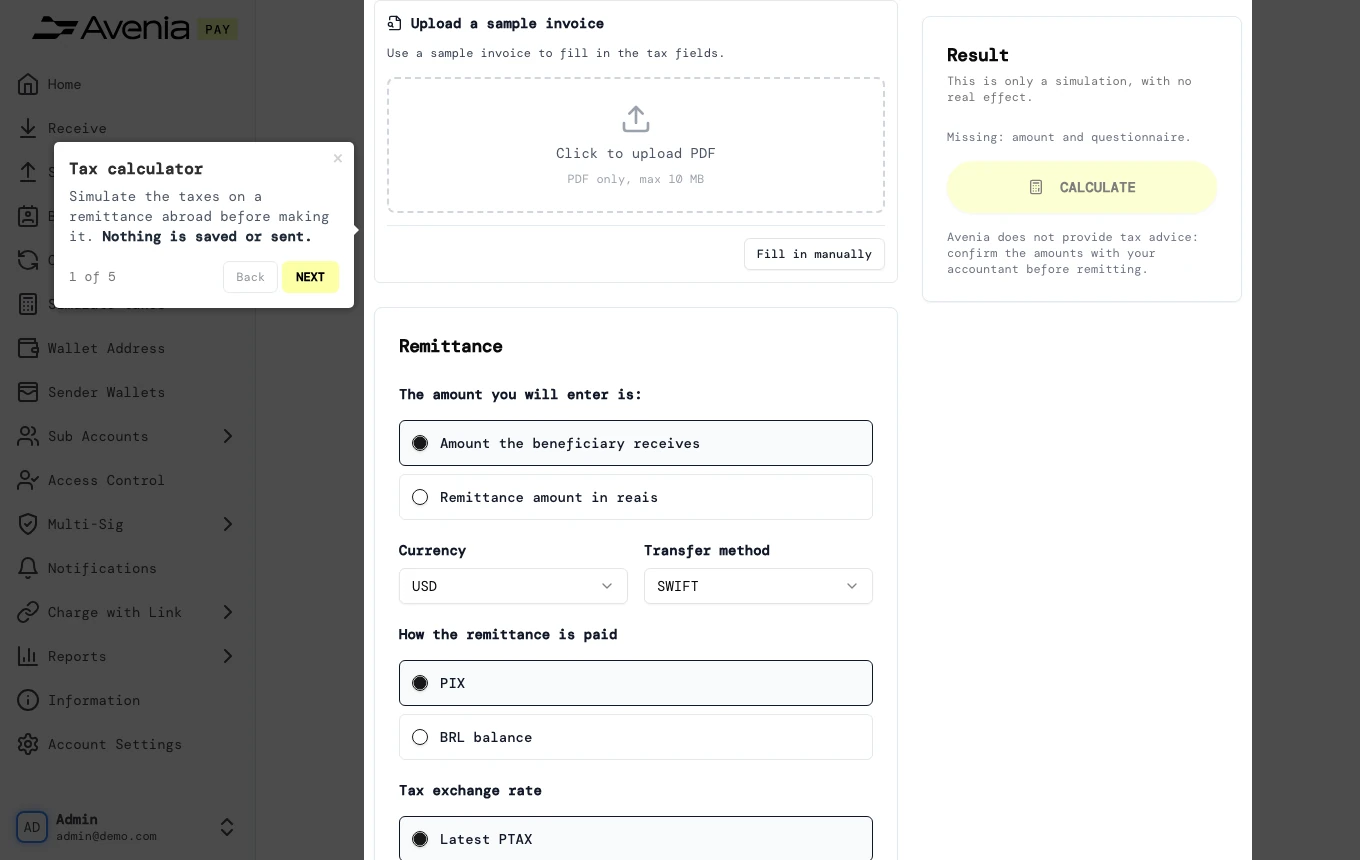
Step by step
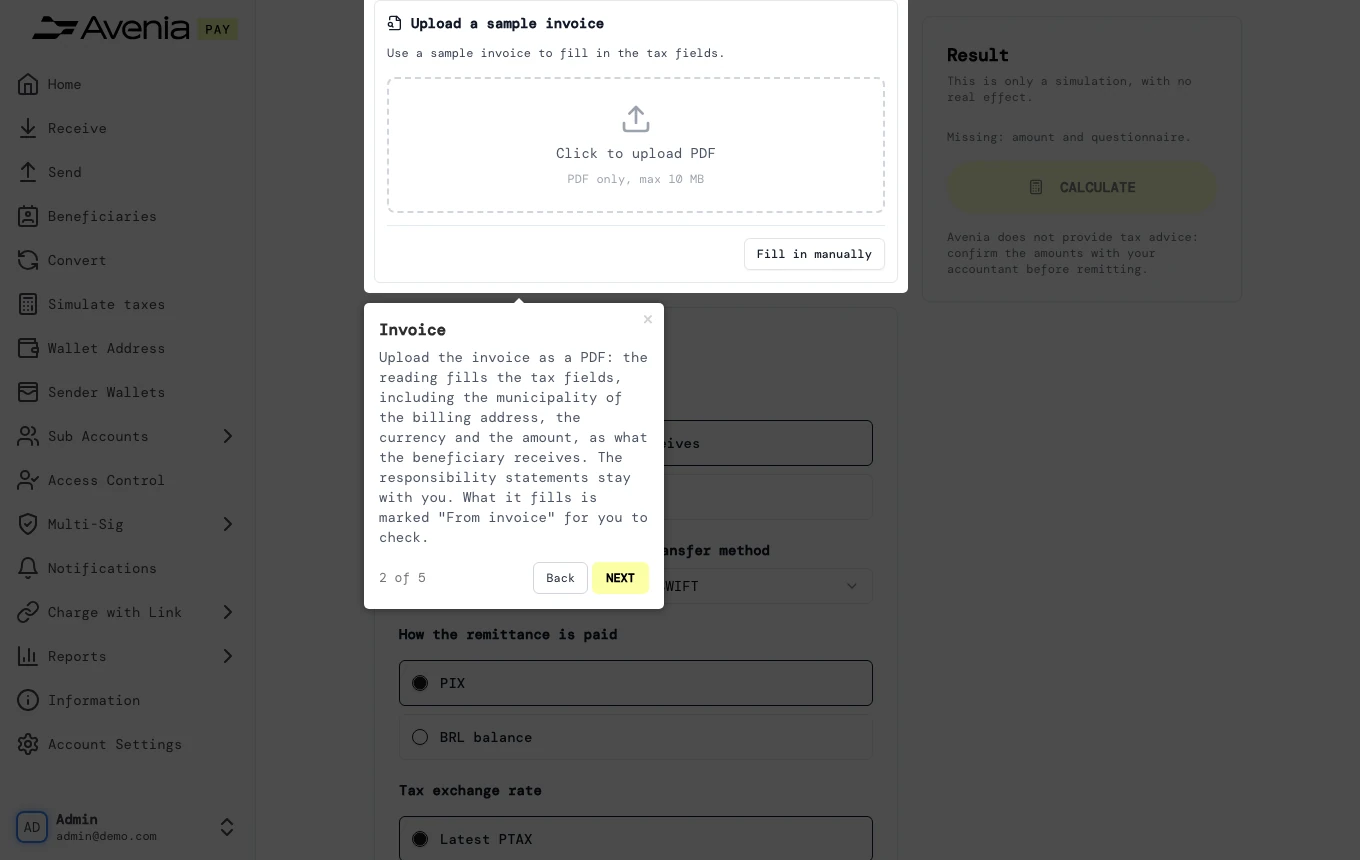
1. Invoice
Upload the invoice as a PDF: the reading fills the tax fields, including the municipality of the billing address, the currency and the amount, as what the beneficiary receives. The responsibility statements stay with you. What it fills is marked "From invoice" for you to check.
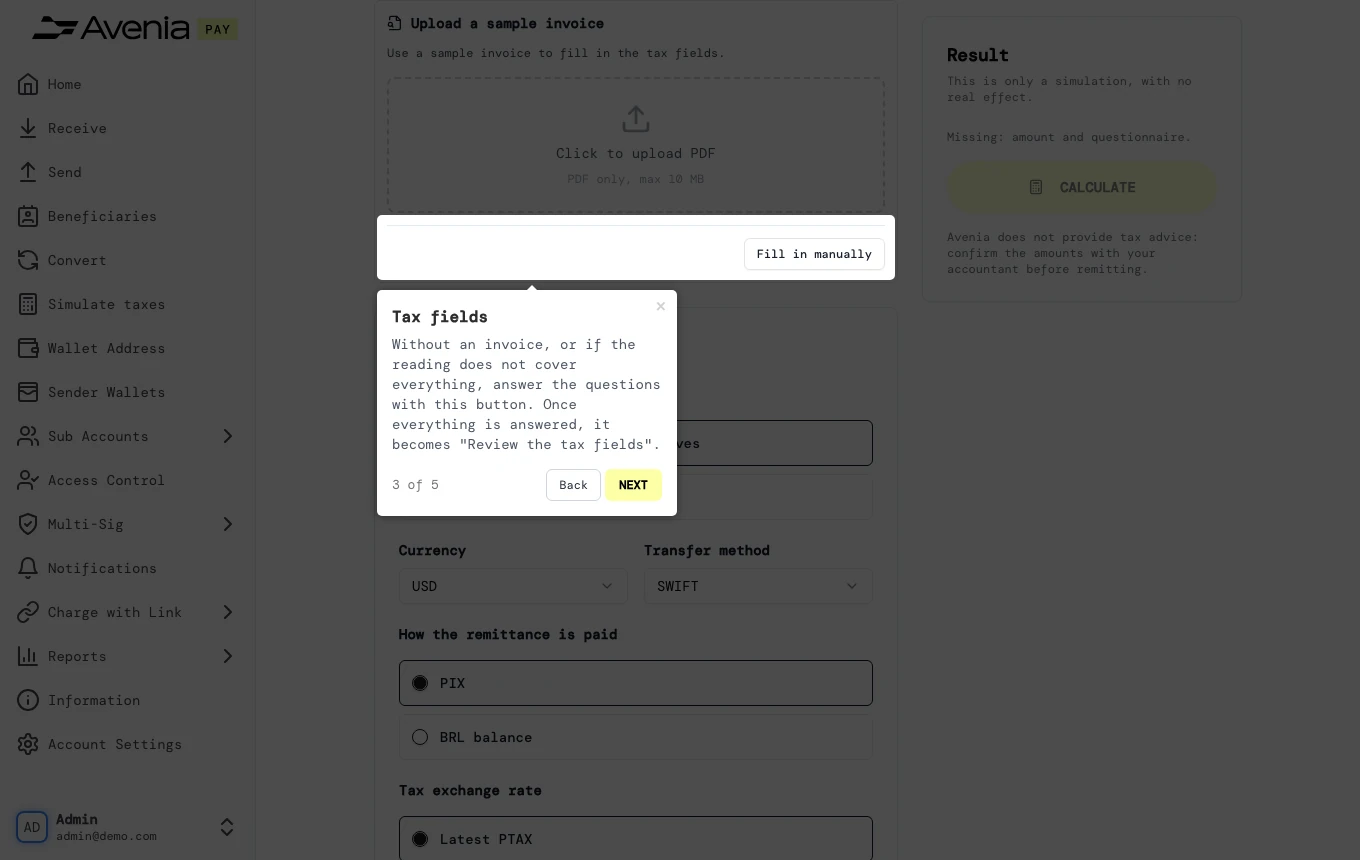
2. Tax fields
Without an invoice, or if the reading does not cover everything, answer the questions with this button. Once everything is answered, it becomes "Review the tax fields".
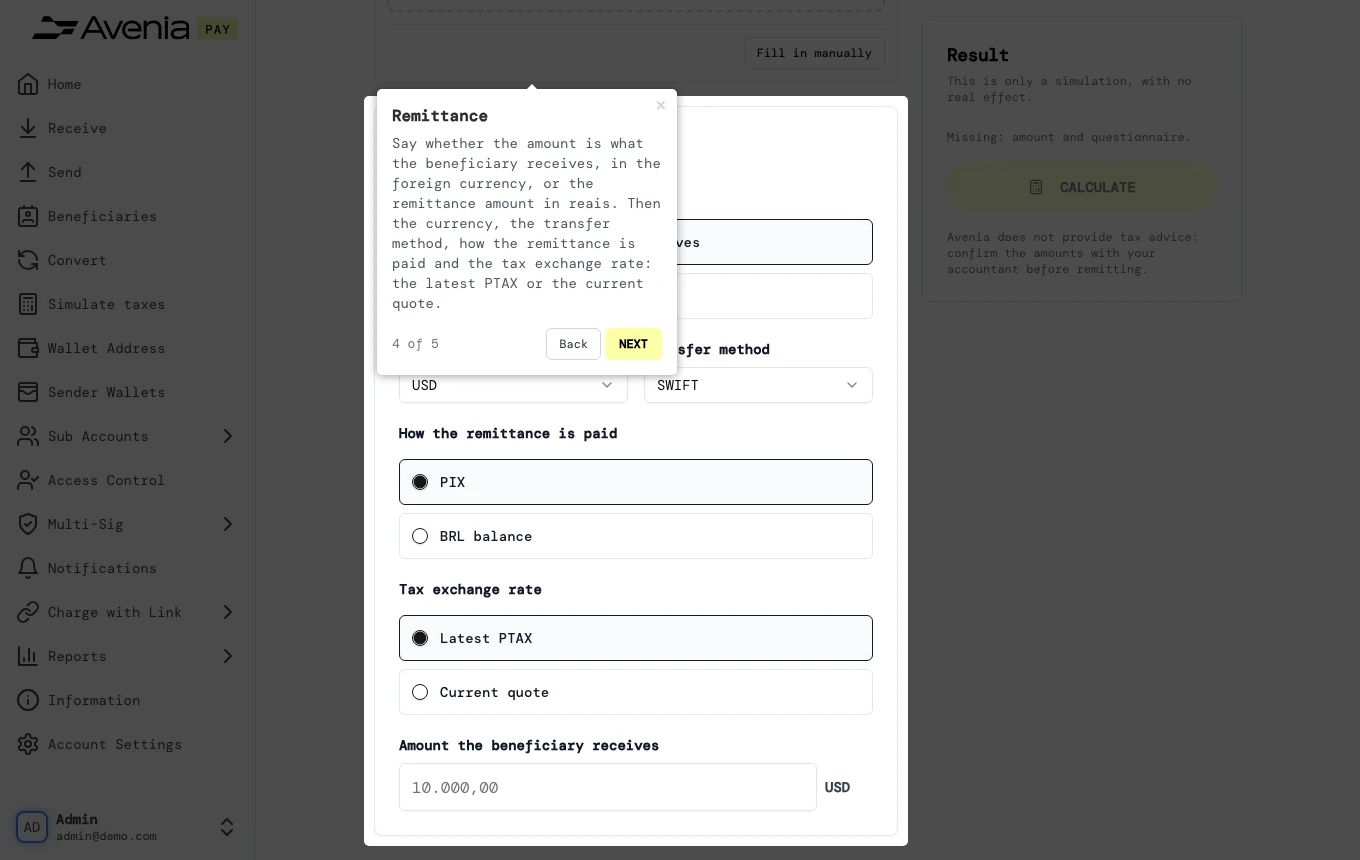
3. Remittance
Say whether the amount is what the beneficiary receives, in the foreign currency, or the remittance amount in reais. Then the currency, the transfer method, how the remittance is paid and the tax exchange rate: the latest PTAX or the current quote.
4. Calculate
Enabled once the remittance and the tax fields are filled in; what is missing shows above it. The result uses the current quote, which may change until the remittance is made; Show details opens each tax's base and rate and how the base is calculated. No DARF is issued here.
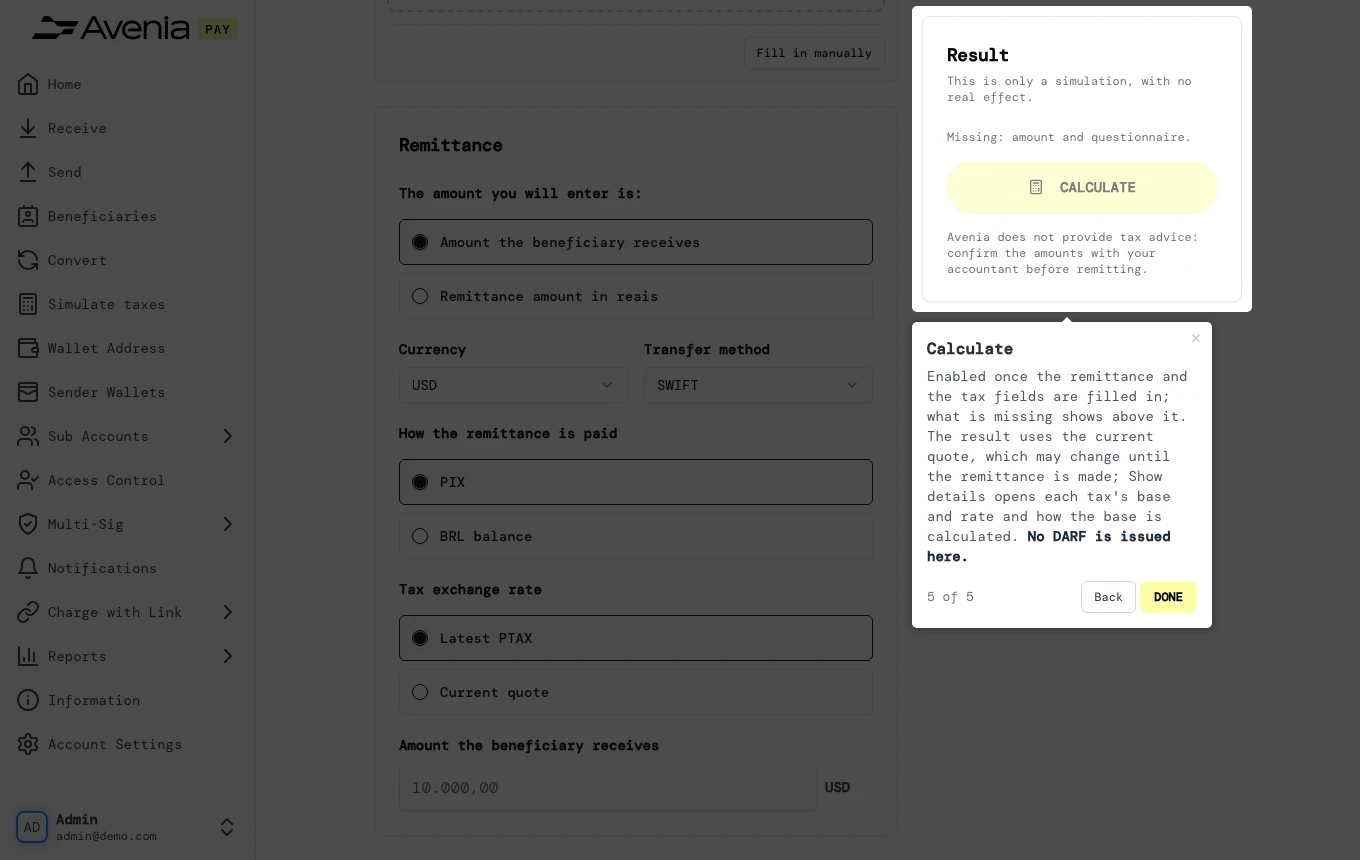
The Screen guide button at the top of this screen in the dashboard walks you through the same steps over your own data.