Manage Sub Accounts
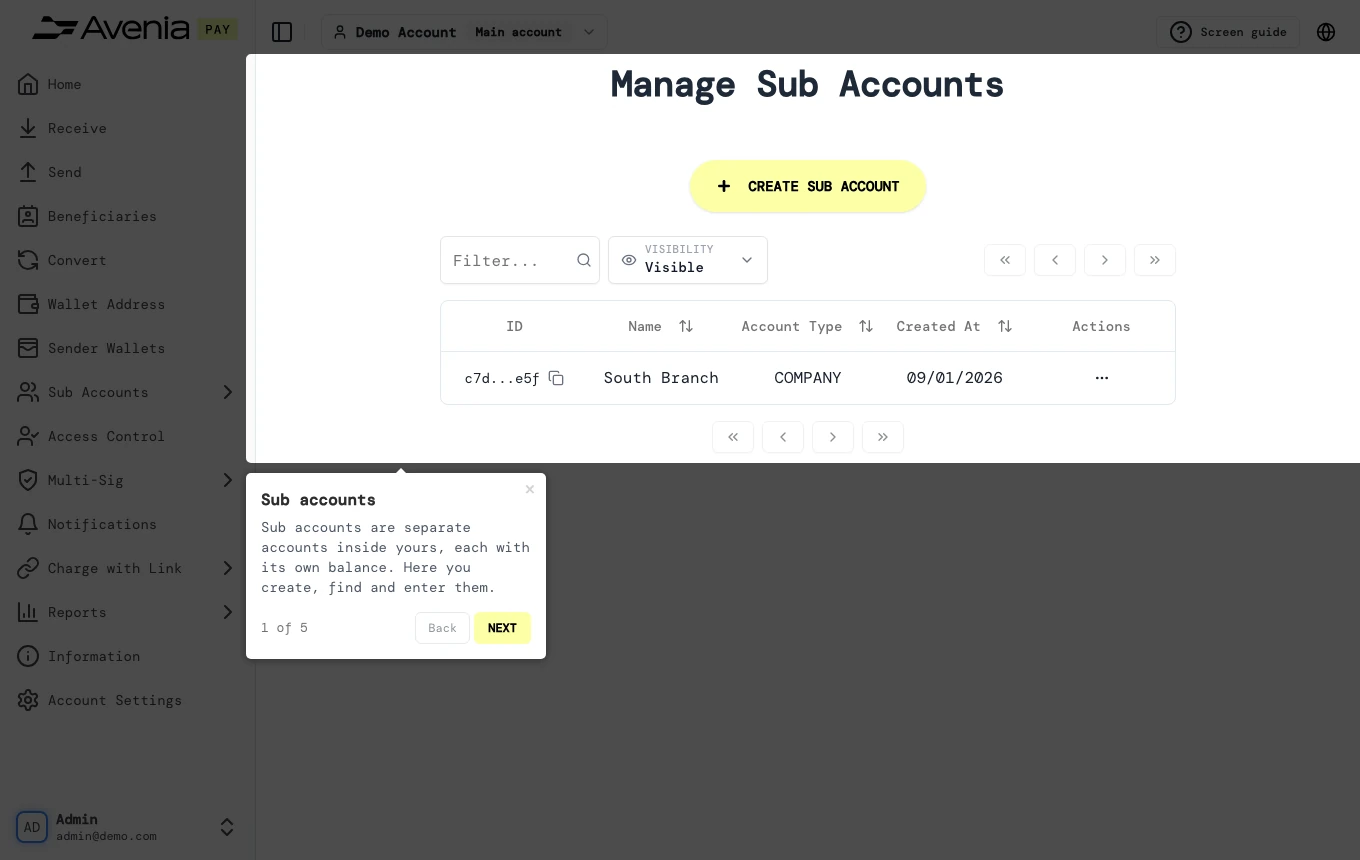
Sub accounts are separate accounts inside yours, each with its own balance. Here you create, find and enter them.
- Where: Side menu → Sub Accounts → Manage Sub Accounts.
- Who can use it: every access to the account, view-only included.
Step by step
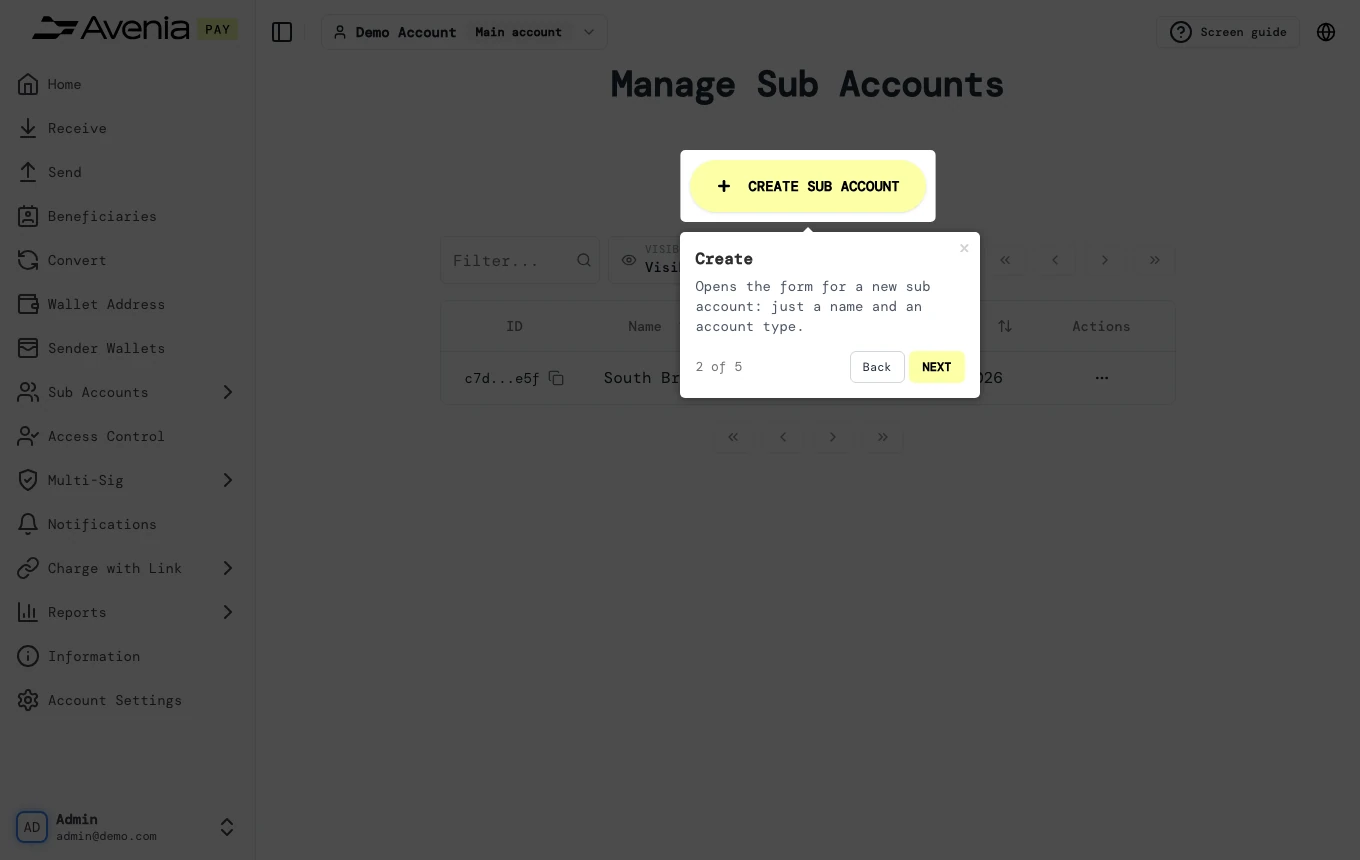
1. Create
Opens the form for a new sub account: just a name and an account type.
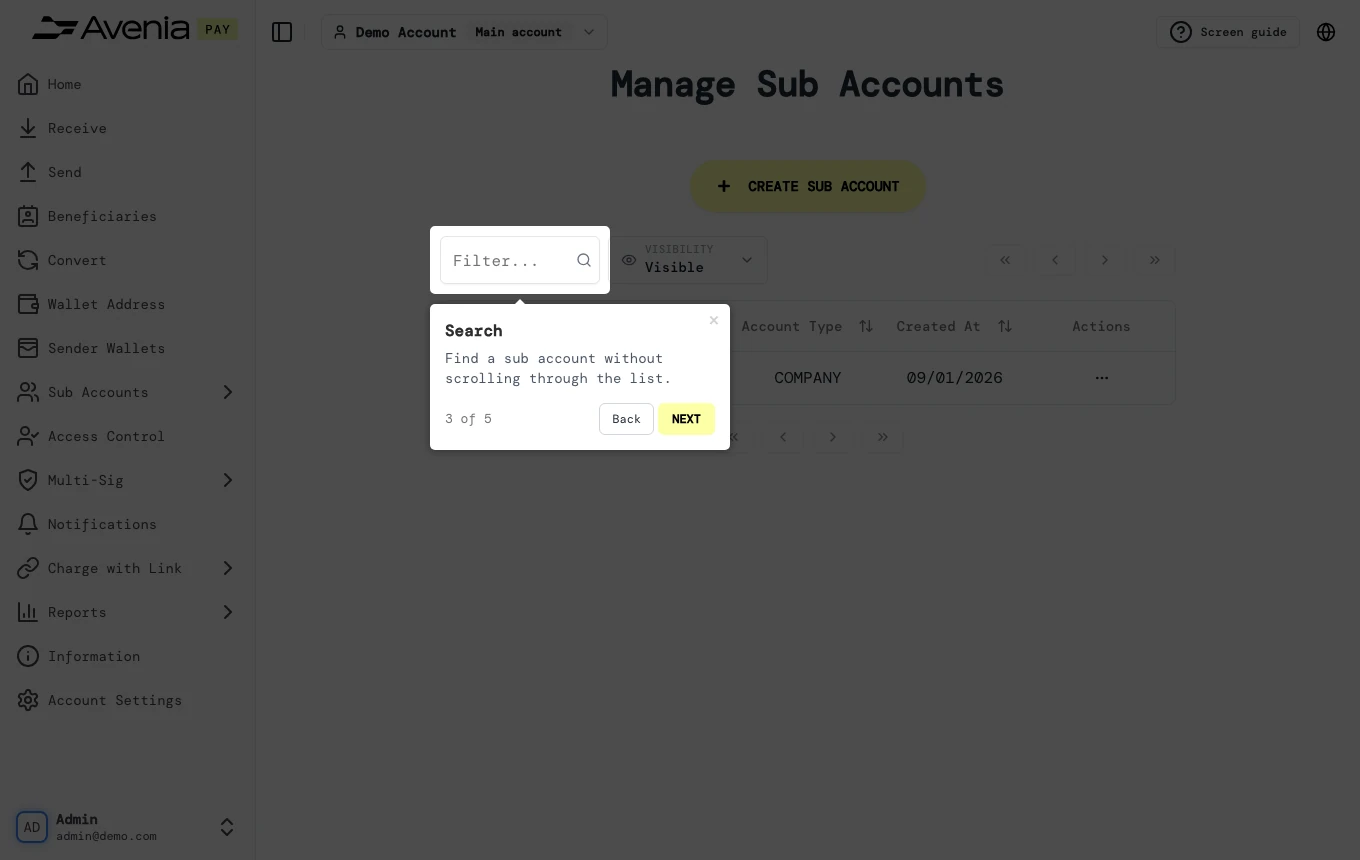
2. Search
Find a sub account without scrolling through the list.
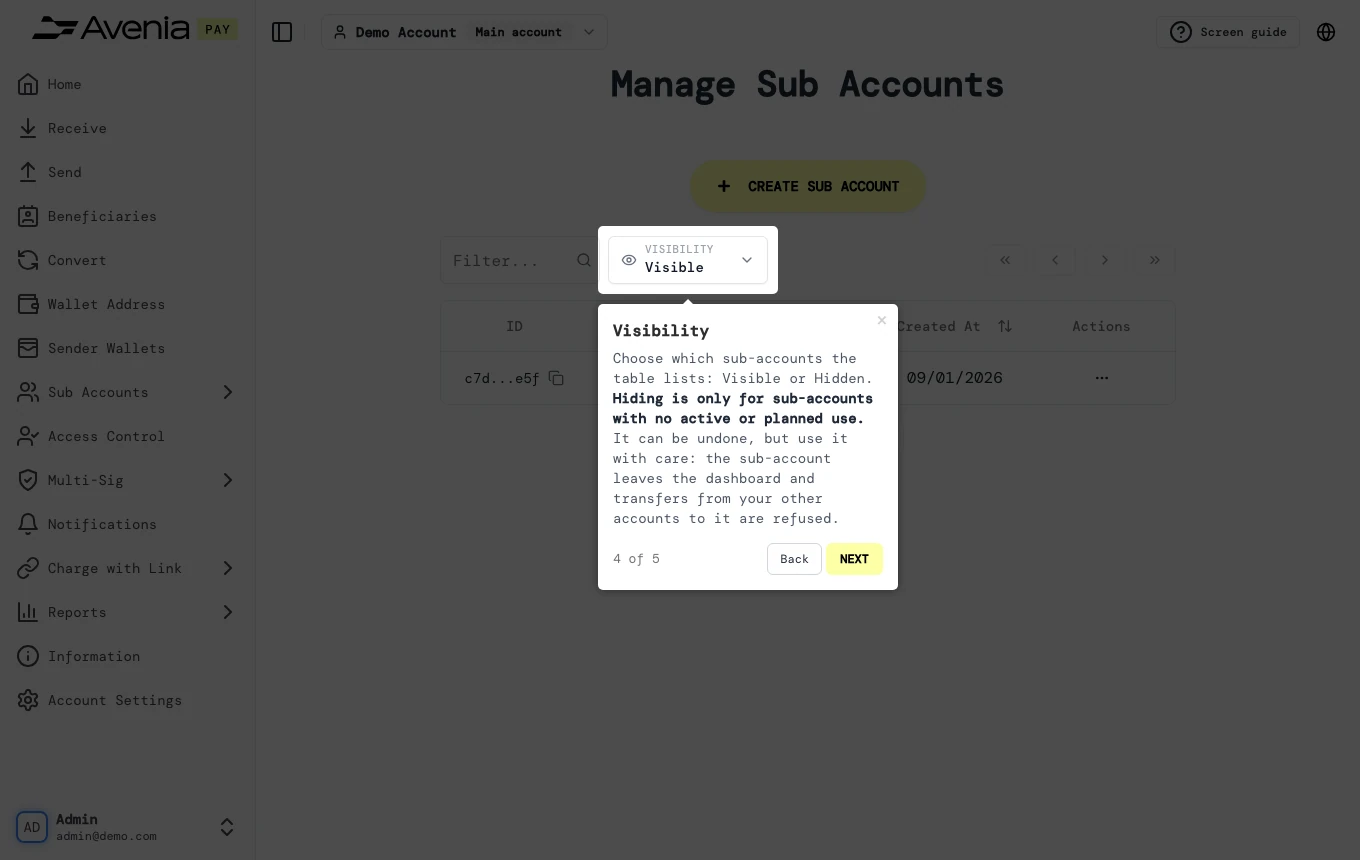
3. Visibility
Choose which sub-accounts the table lists: Visible or Hidden. Hiding is only for sub-accounts with no active or planned use. It can be undone, but use it with care: the sub-account leaves the dashboard and transfers from your other accounts to it are refused.
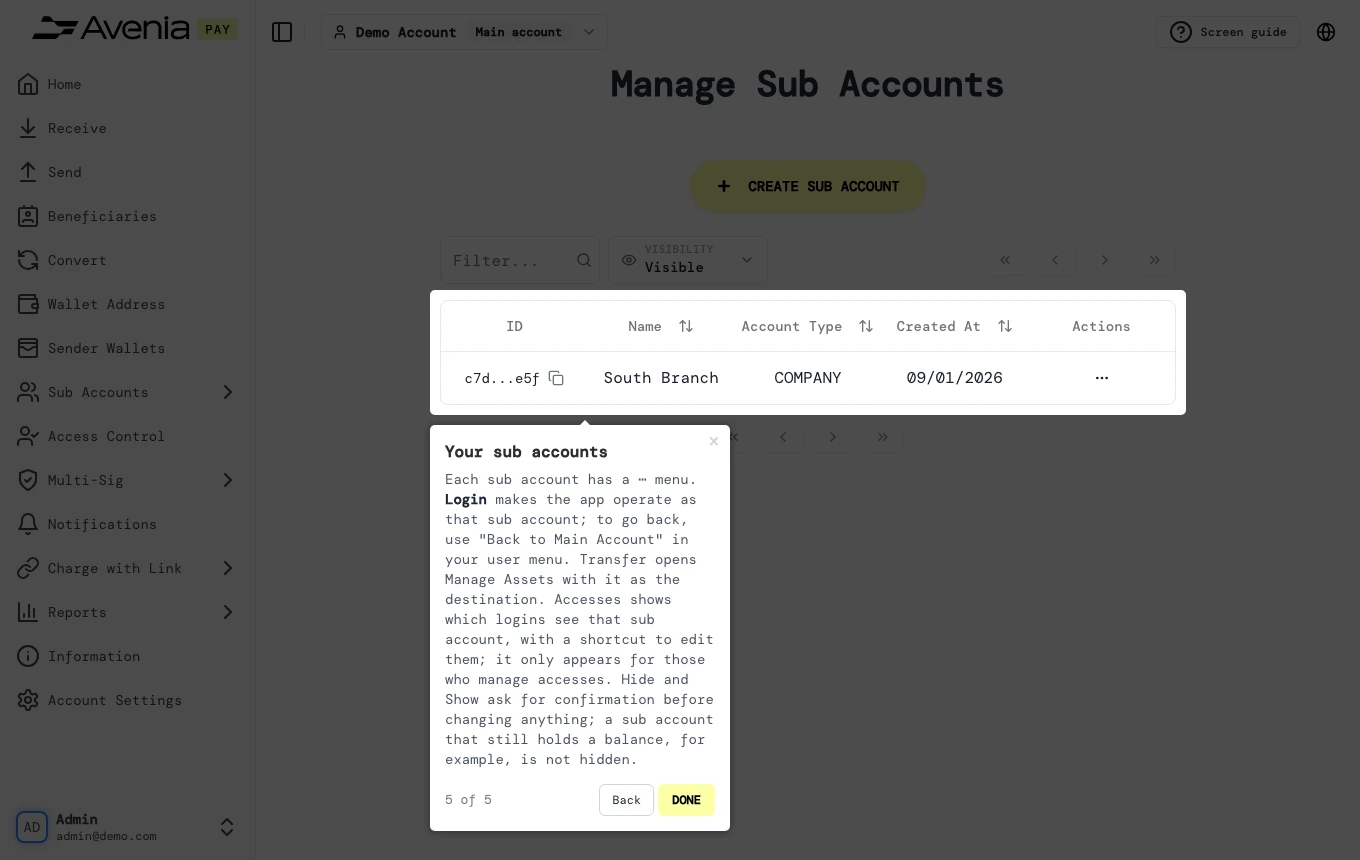
4. Your sub accounts
Each sub account has a ⋯ menu. Login makes the app operate as that sub account; to go back, use "Back to Main Account" in your user menu. Transfer opens Manage Assets with it as the destination. Accesses shows which logins see that sub account, with a shortcut to edit them; it only appears for those who manage accesses. Hide and Show ask for confirmation before changing anything; a sub account that still holds a balance, for example, is not hidden.
The Screen guide button at the top of this screen in the dashboard walks you through the same steps over your own data.