Edit Permissions
Change what this person can do. Nothing changes until you confirm with your authenticator code.
- Where: Opens from Edit Permissions in an access's ⋯ menu on Access Control.
- Who can use it: the account administrator and access managers.
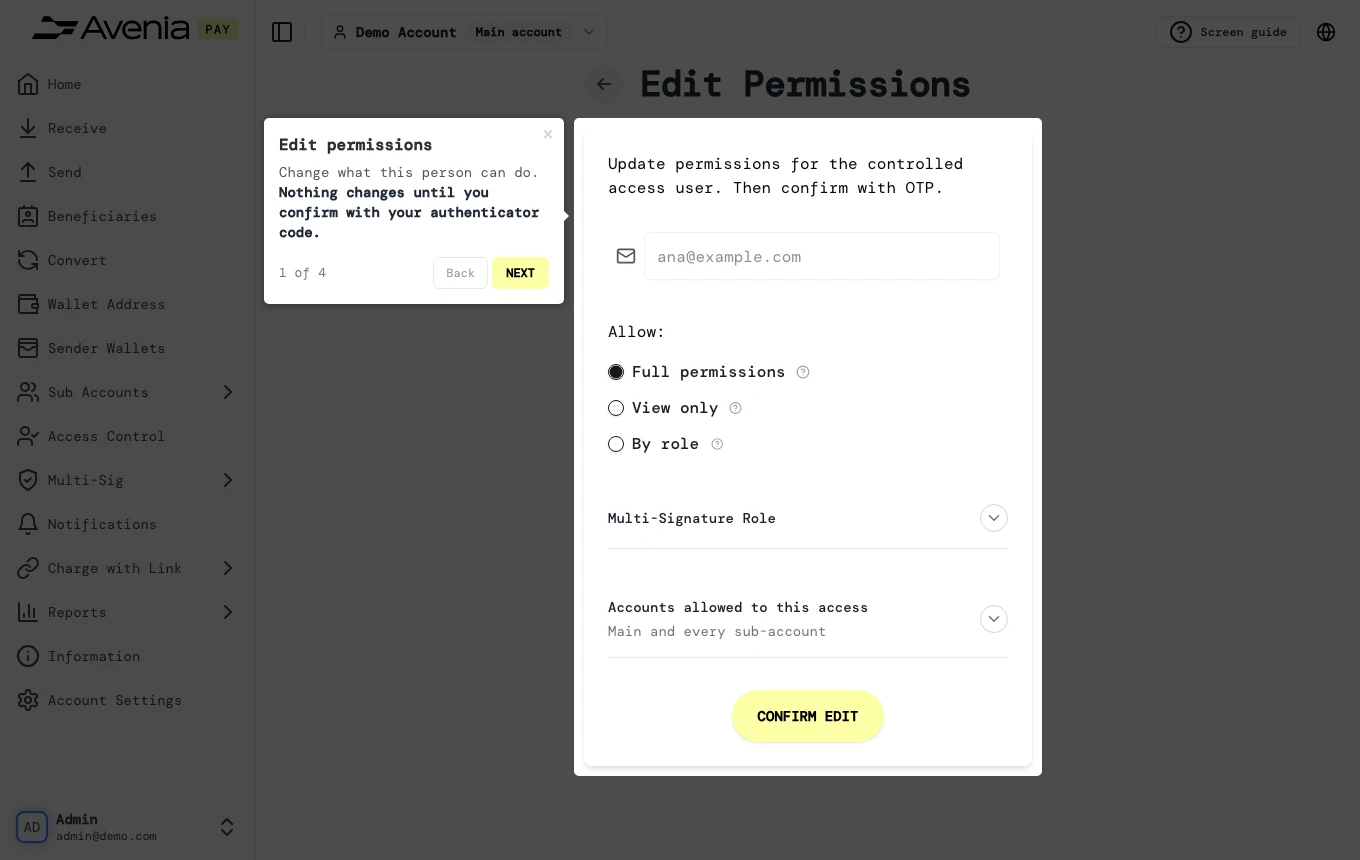
Step by step
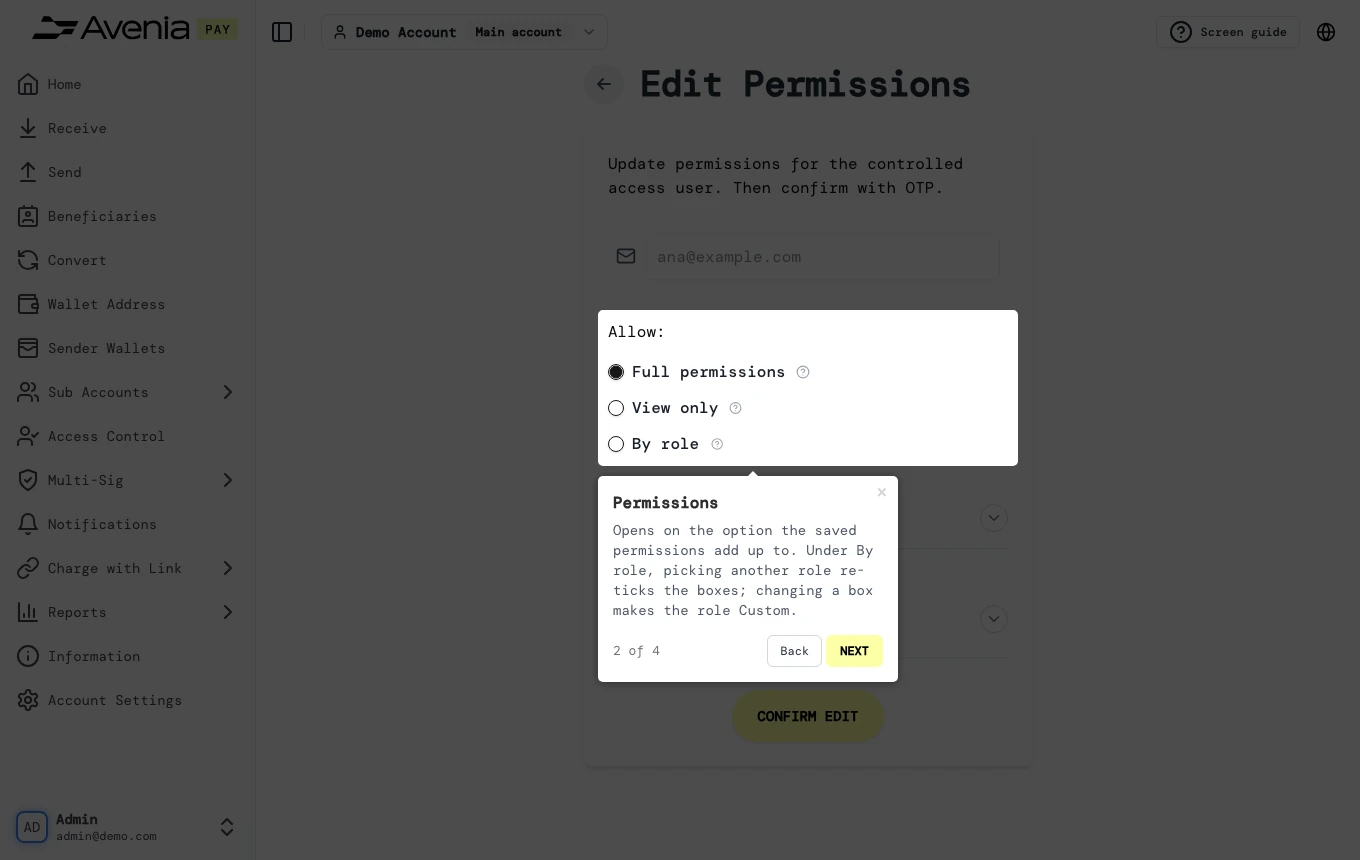
1. Permissions
Opens on the option the saved permissions add up to. Under By role, picking another role re-ticks the boxes; changing a box makes the role Custom.
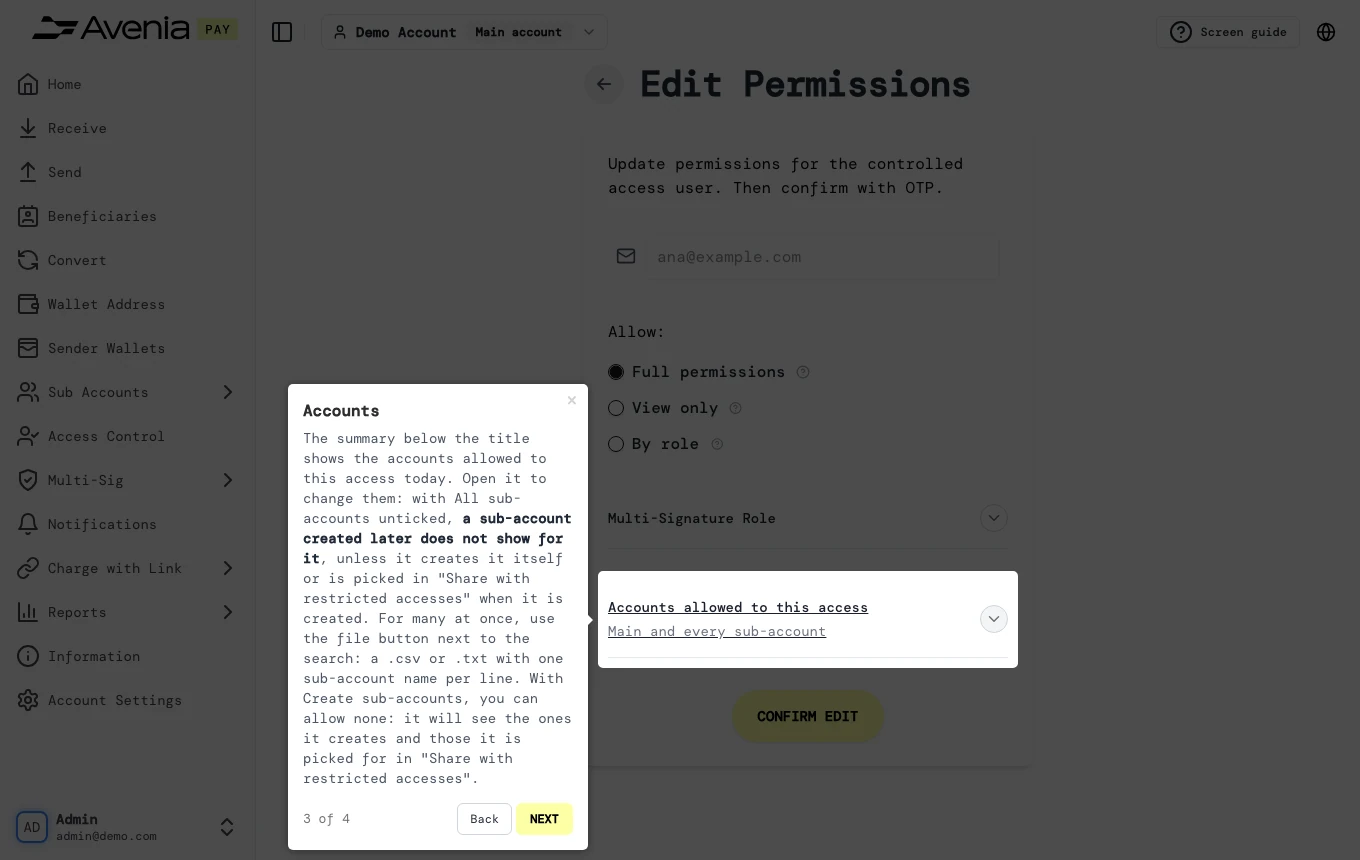
2. Accounts
The summary below the title shows the accounts allowed to this access today. Open it to change them: with All sub-accounts unticked, a sub-account created later does not show for it, unless it creates it itself or is picked in "Share with restricted accesses" when it is created. For many at once, use the file button next to the search: a .csv or .txt with one sub-account name per line. With Create sub-accounts, you can allow none: it will see the ones it creates and those it is picked for in "Share with restricted accesses".
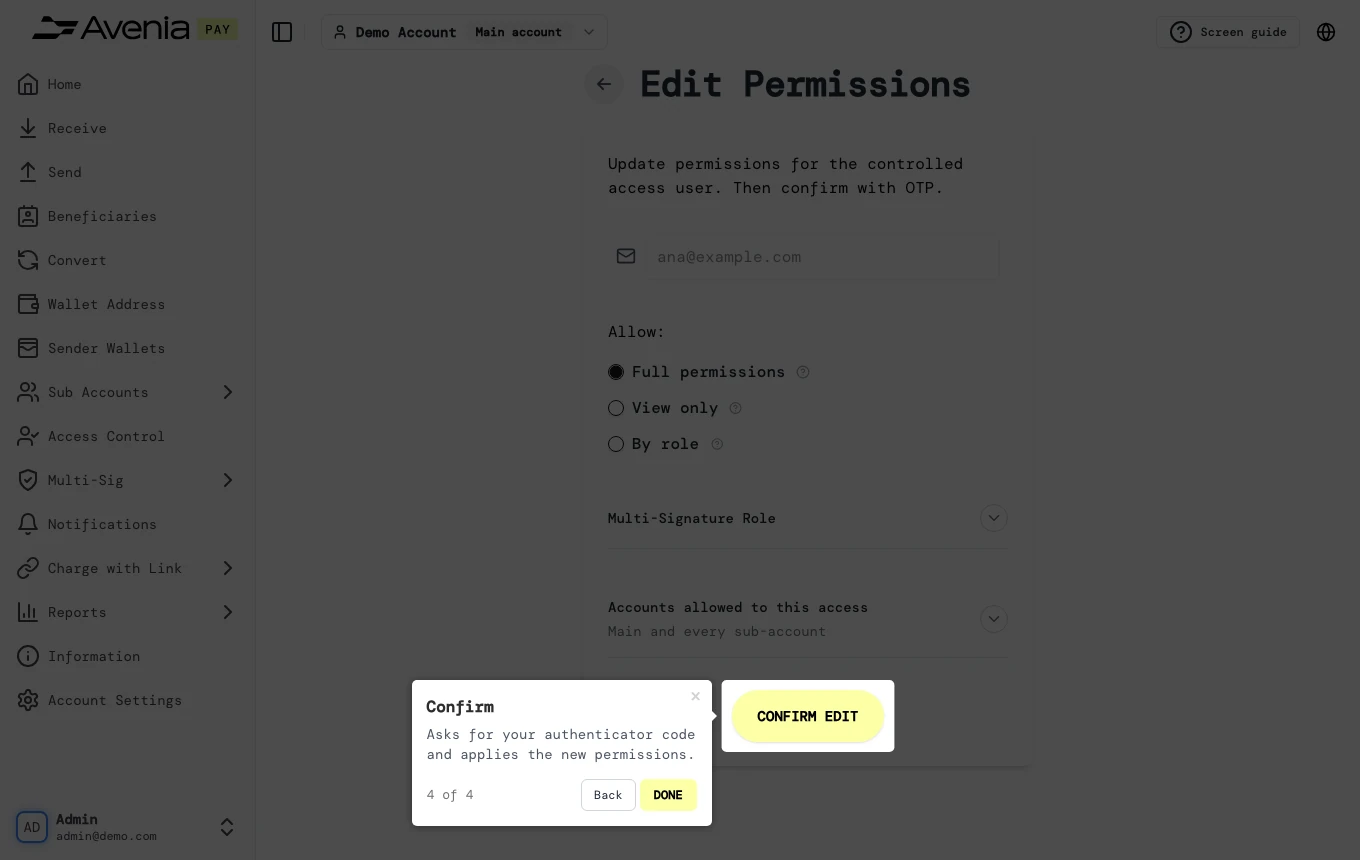
3. Confirm
Asks for your authenticator code and applies the new permissions.
The Screen guide button at the top of this screen in the dashboard walks you through the same steps over your own data.