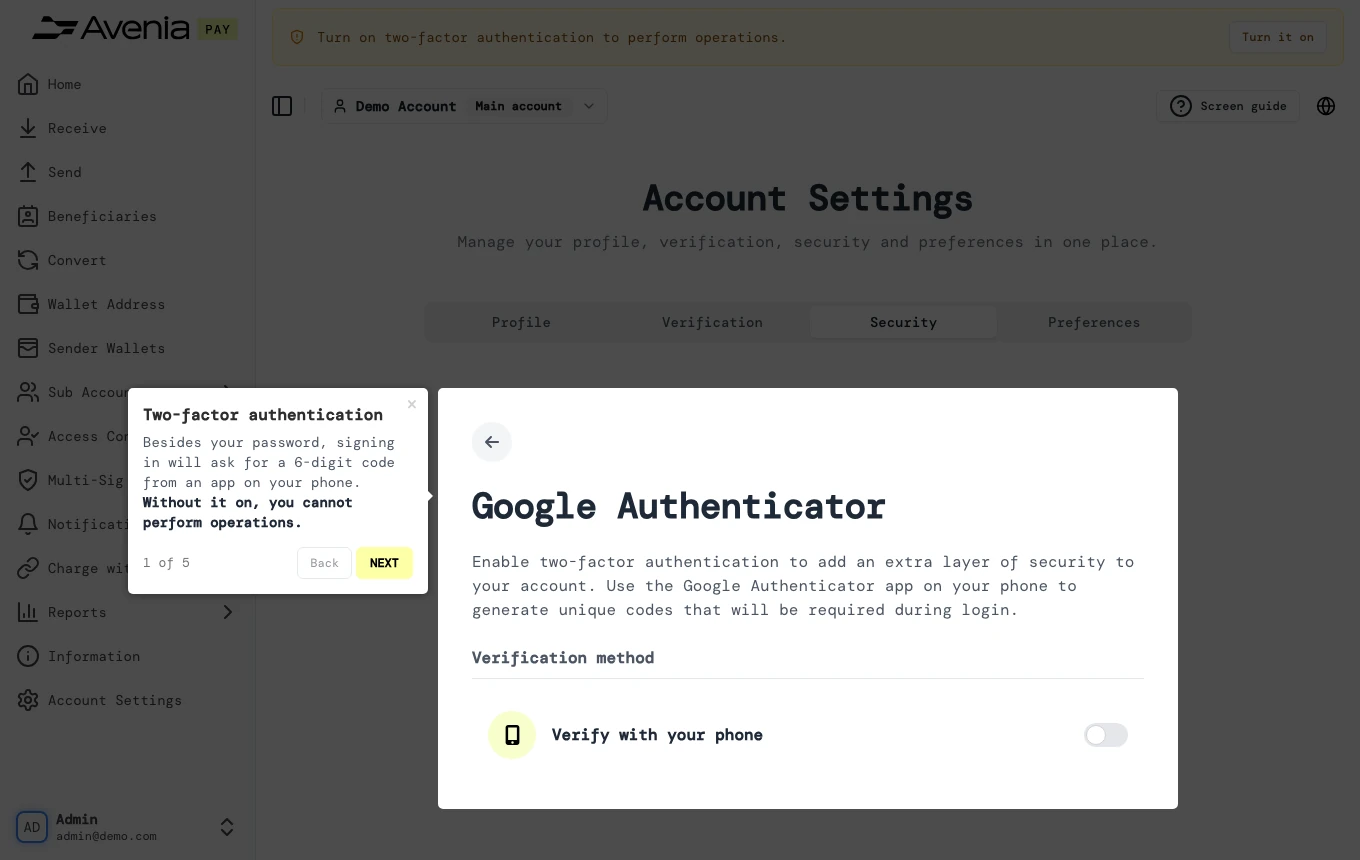
Two-factor authentication
Besides your password, signing in will ask for a 6-digit code from an app on your phone. Without it on, you cannot perform operations.
- Where: Opens from the two-factor entry on the Security tab of Account Settings, or from Turn it on on the banner a login without two-factor sees.
- Who can use it: every access to the account, view-only included.
Step by step
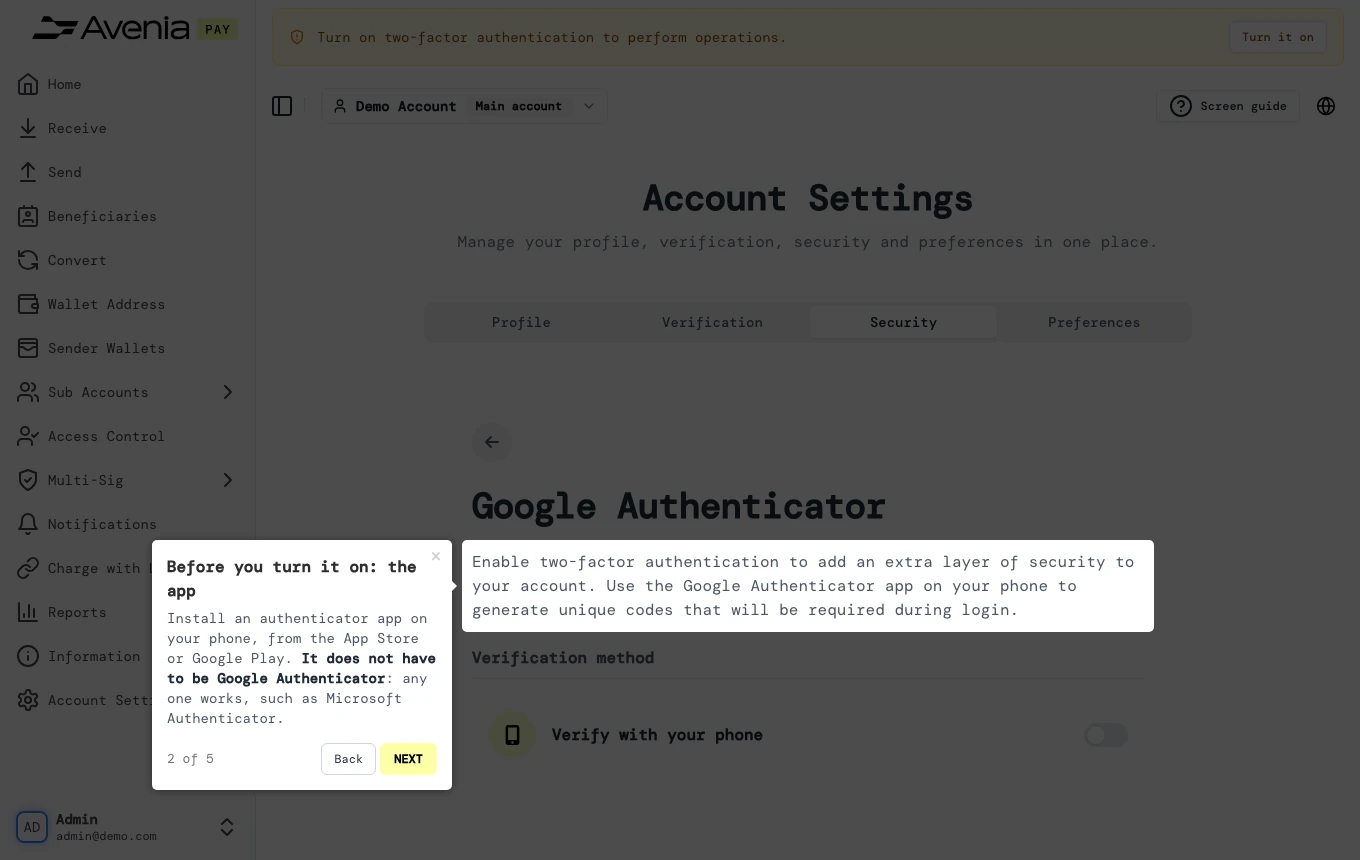
1. Before you turn it on: the app
Install an authenticator app on your phone, from the App Store or Google Play. It does not have to be Google Authenticator: any one works, such as Microsoft Authenticator.
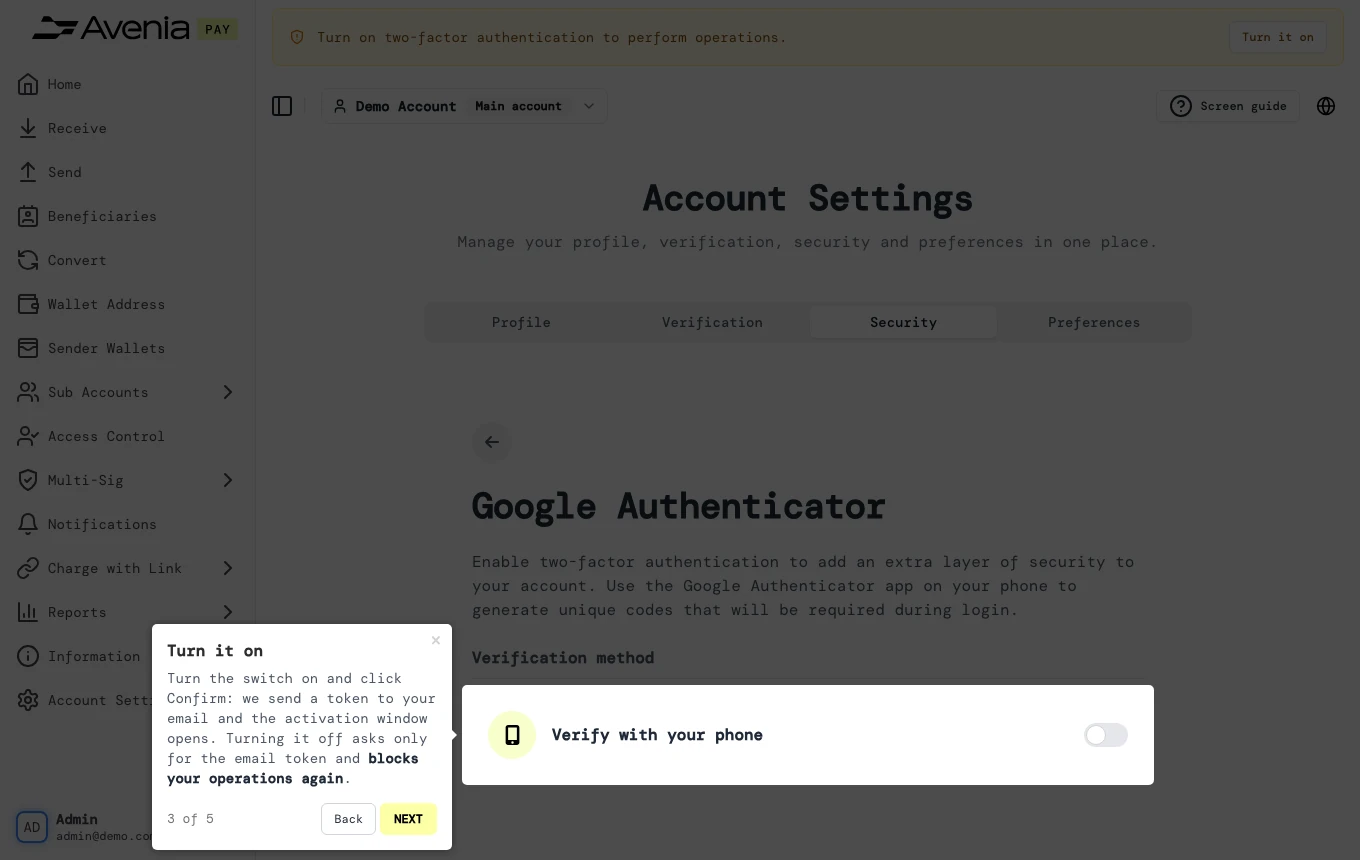
2. Turn it on
Turn the switch on and click Confirm: we send a token to your email and the activation window opens. Turning it off asks only for the email token and blocks your operations again.
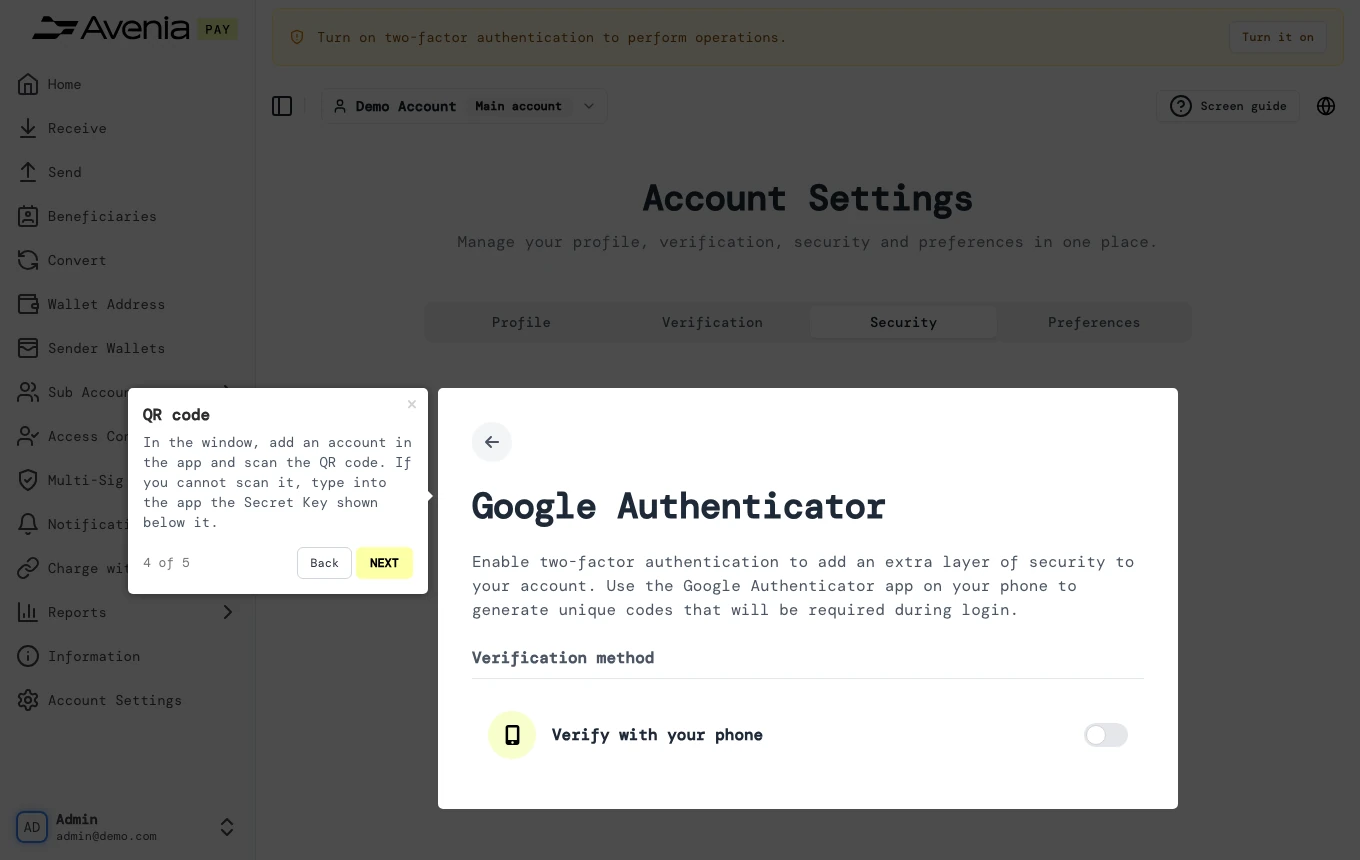
3. QR code
In the window, add an account in the app and scan the QR code. If you cannot scan it, type into the app the Secret Key shown below it.
4. The two codes
Enter the token that arrived by email and the 6-digit code the app shows, then click Submit. It is only on after Submit: Cancel closes the window without turning it on.
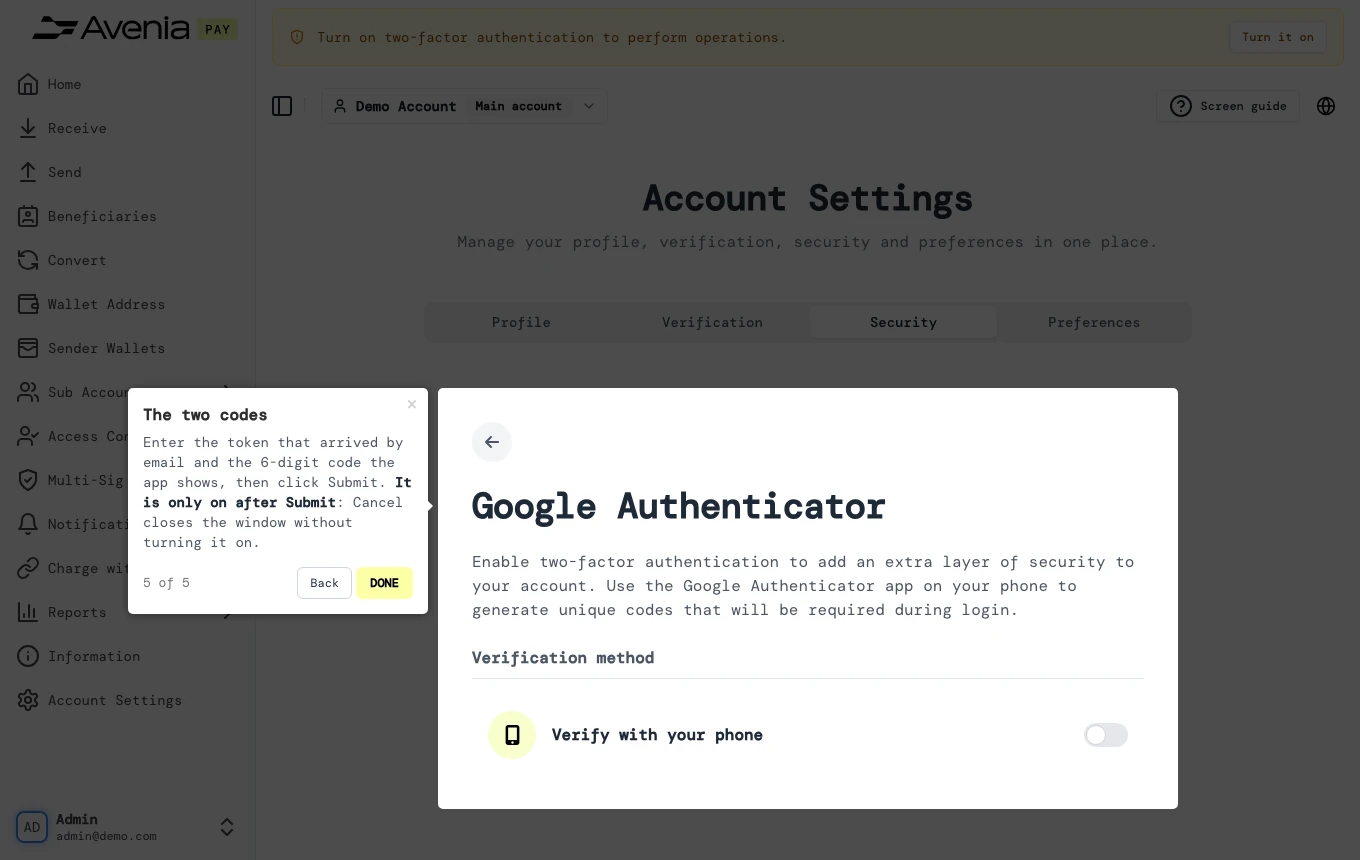
The Screen guide button at the top of this screen in the dashboard walks you through the same steps over your own data.